
LossGuardian guide
Settings: your account, brokers and app
Settings is where you look after your account, your brokers and the app itself. The menu on the left has five groups: Account, Protection, Preferences, Support and Danger Zone. Here is what each page does.
Account
Your sign-in, your details and your devices, all on one page.
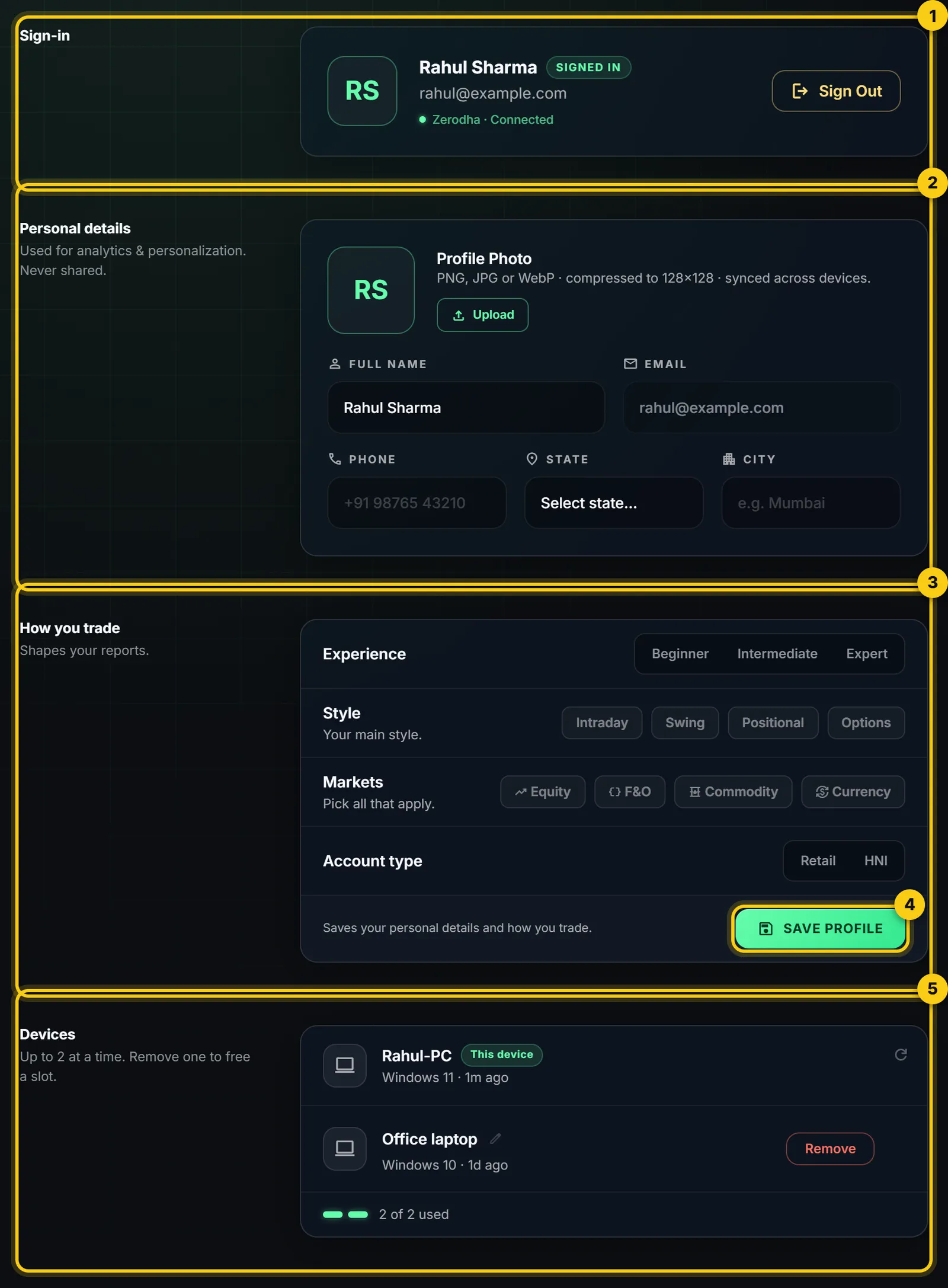
- 1
Sign-in. Shows who is signed in and which broker is connected. Sign Out is here too.
- 2
Personal details. Your photo, name, phone, state and city. They are used for your reports and never shared. Your email is the one you sign in with, so it cannot be changed here.
- 3
How you trade. Your experience, main style, the markets you trade and your account type. This shapes your reports.
- 4
Save profile. Saves your personal details and how you trade.
- 5
Devices. You can use LossGuardian on up to 2 computers at a time. To use a third one, press Remove next to a computer you no longer use. You can rename a device so you know which is which.
Broker Connections
Each broker has its own card, called a ticket. The ticket tells you where that broker stands.
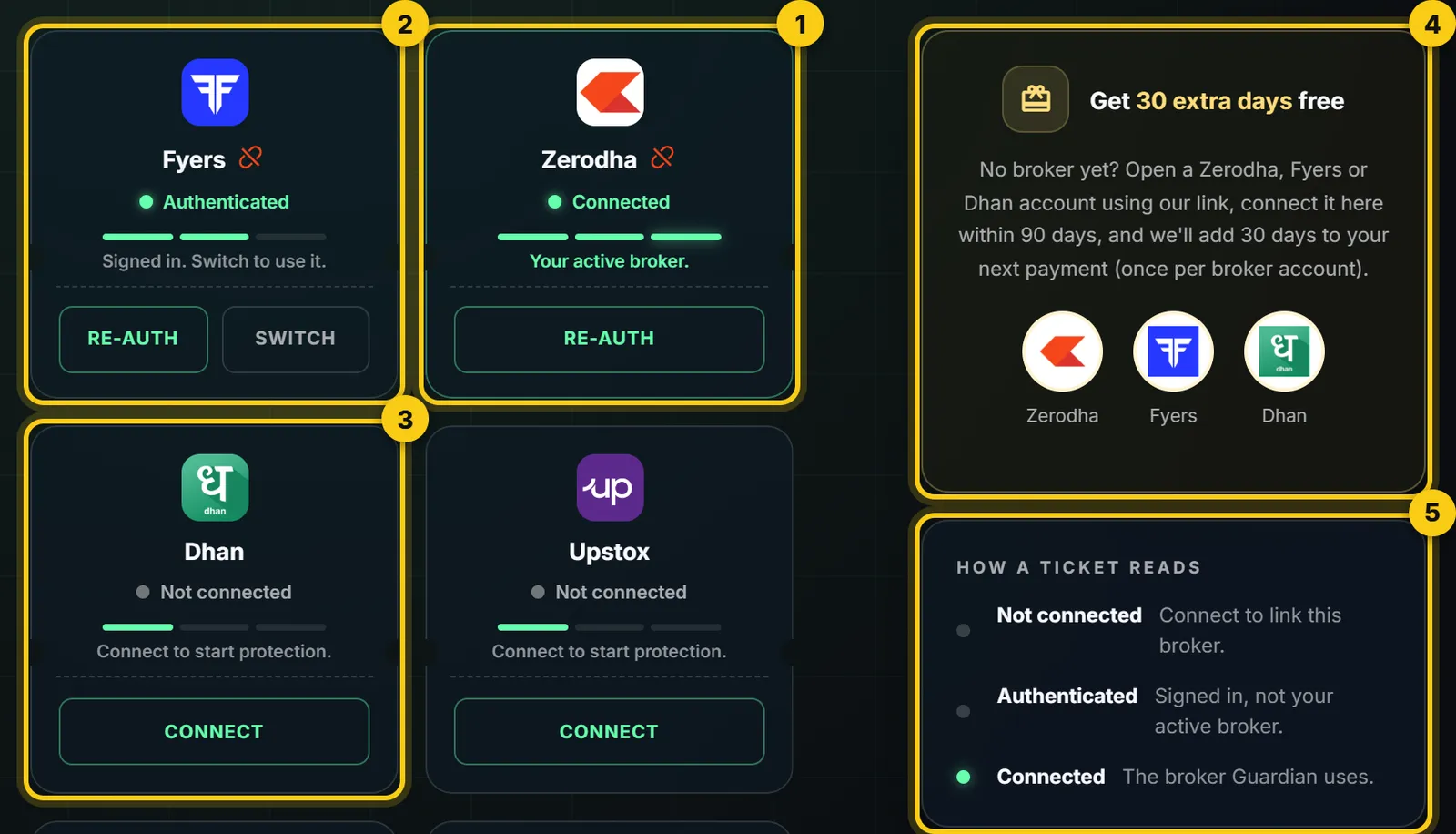
- 1
Connected. This is the broker Guardian watches. Re-auth signs you in to it again.
- 2
Authenticated. You are signed in, but this is not your active broker. Press Switch to make it the one Guardian watches.
- 3
Not connected. Press Connect to link this broker. The connect window has a setup video for your broker.
- 4
Get 30 extra days free. No broker account yet? Open a Zerodha, Fyers or Dhan account using the link on this card, connect it within 90 days, and 30 days are added to your next payment, once per broker account.
- 5
How a ticket reads. A short key to the three states, so you never have to guess.
A broker change takes effect the next time Guardian starts. To disconnect a broker, use the small icon next to its name.
How to connect each broker, step by stepAdvanced Mode
Advanced Mode has its own group in the menu, Protection. The label next to it shows Off, On, Paused or Done, so you can see its state at a glance.
General
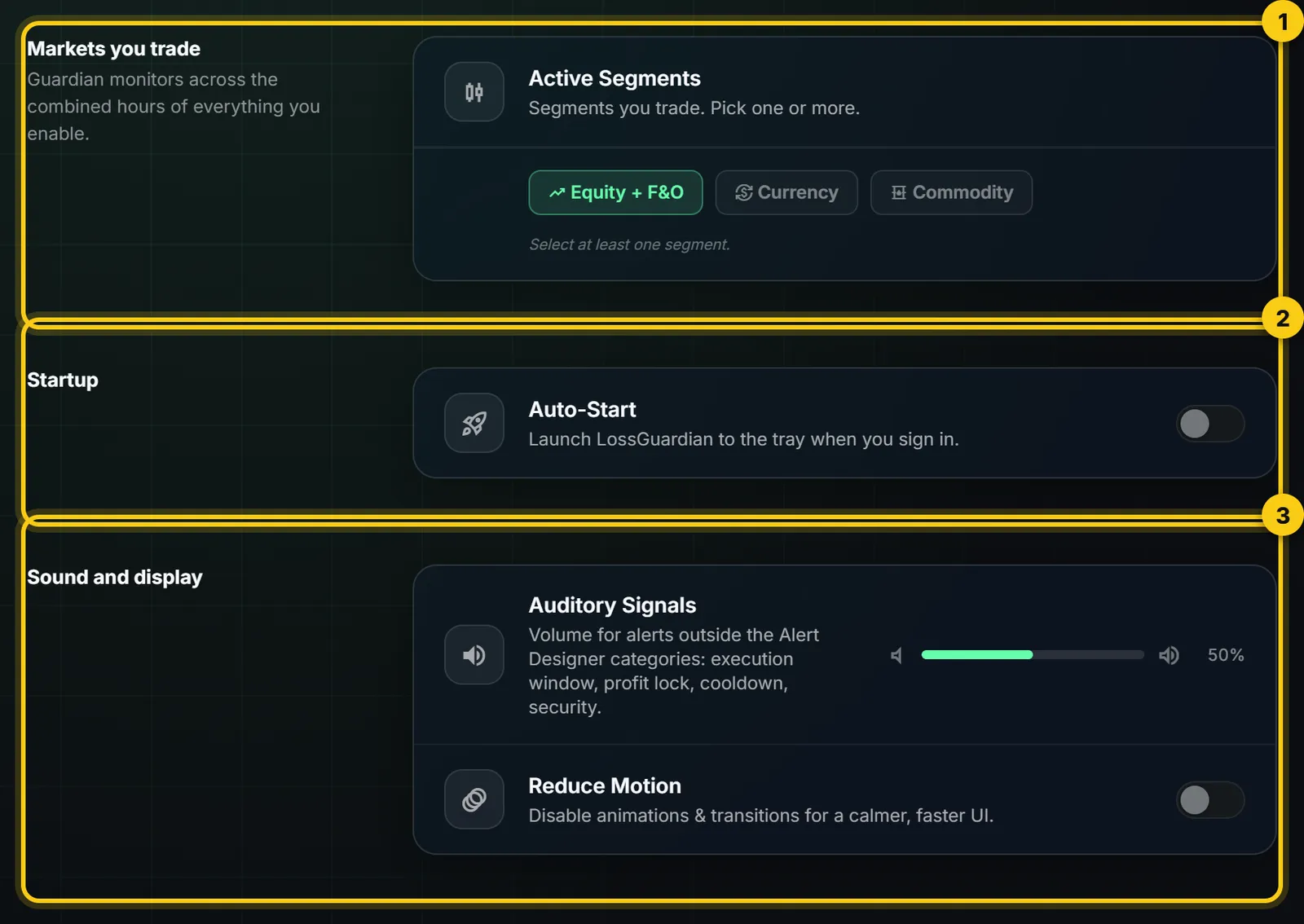
- 1
Markets you trade. Pick one or more: Equity + F&O, Currency, Commodity. Guardian watches across the trading hours of everything you pick.
- 2
Auto-Start. Opens LossGuardian to the tray when you sign in to your computer.
- 3
Sound and display. The volume for alerts that are not in the Alerts Designer, and Reduce Motion, which turns off animations for a calmer screen.
Press Apply Configuration at the bottom to save your changes, or Discard to undo them.
Data & Privacy
Your trading data stays on your computer unless you turn on backup. Everything here is yours to export, rebuild or delete.
Cloud backup is off until you turn it on. With it on, each closed trading day is backed up. Restore previous data only fills days that are missing on this computer. It never overwrites a day you already have, so it is always safe to run.
Crash reports and app usage help find bugs and show which features get used. They never include your trades, positions, order details, amounts or prices. You can turn them off.
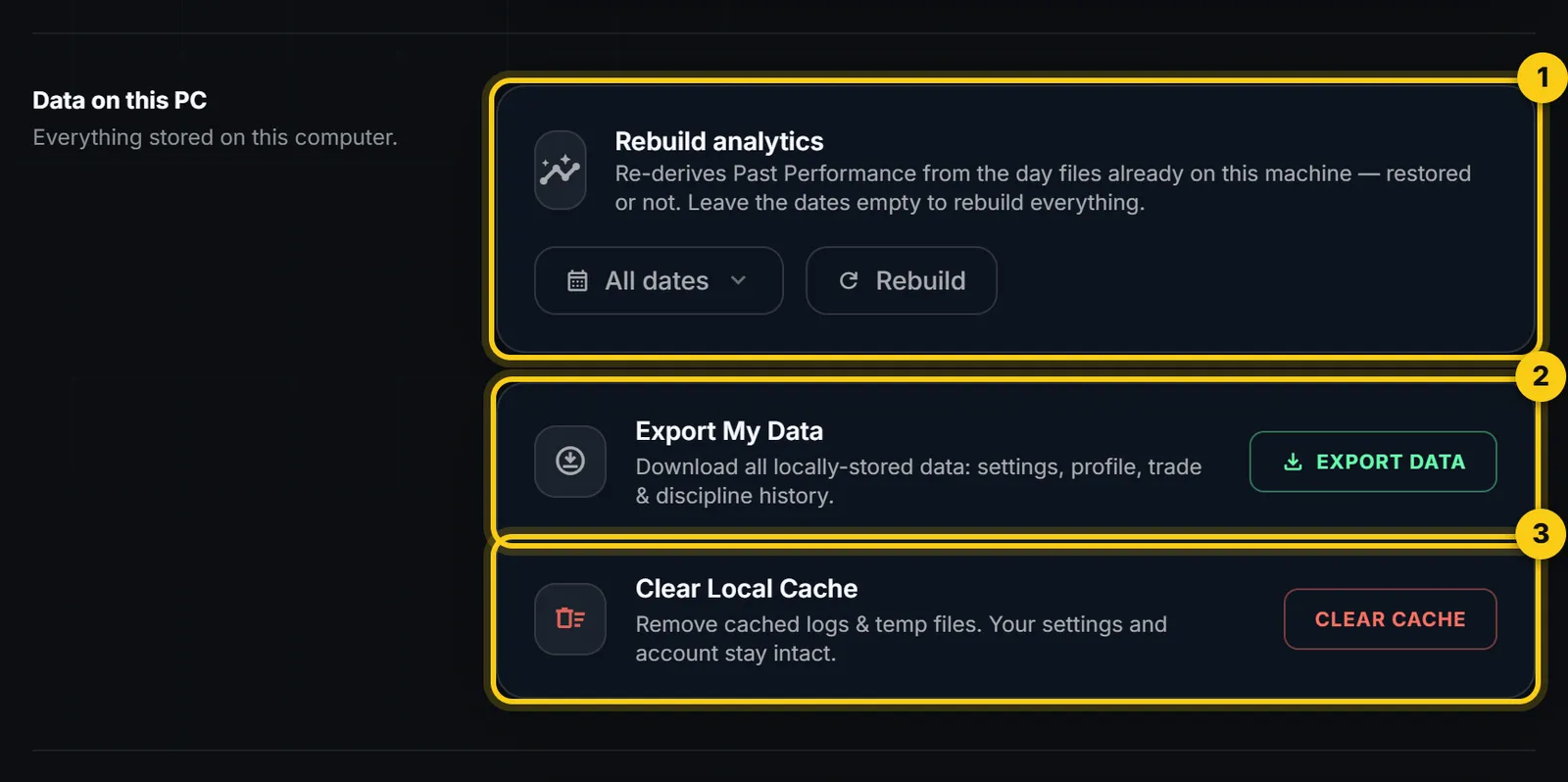
- 1
Rebuild analytics. Builds your Past Performance again from the days saved on this computer. Leave the dates empty to rebuild everything.
- 2
Export My Data. Downloads everything stored on this computer: settings, profile, trades and discipline history.
- 3
Clear Local Cache. Removes old logs and temporary files. Your settings and account stay as they are.
Under Logging you can open the log folder or export it as a ZIP. Logs are kept for 7 days. Attach the ZIP when you report a bug, so the team can find it faster.
Help & About
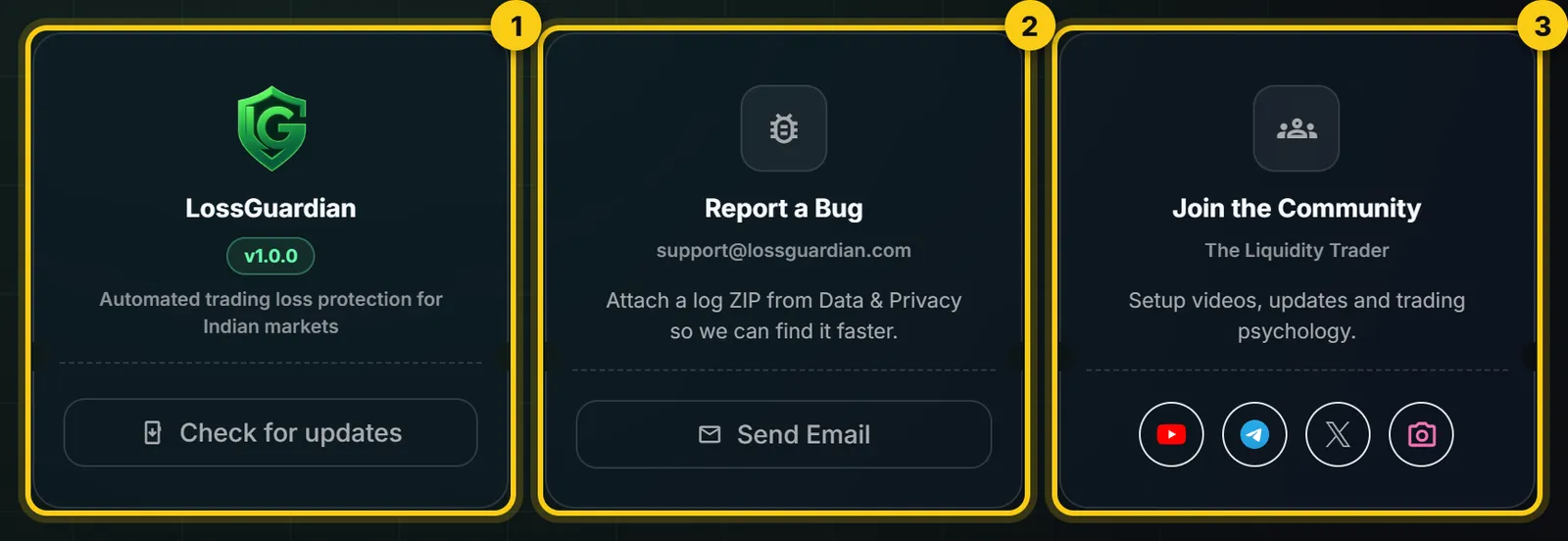
- 1
LossGuardian. The version you are on. Press Check for updates to get the latest one.
- 2
Report a Bug. Email support@lossguardian.com. Attach a log ZIP from Data & Privacy.
- 3
Join the Community. Setup videos, updates and trading psychology from The Liquidity Trader, on YouTube, Telegram, X and Instagram.
Danger Zone
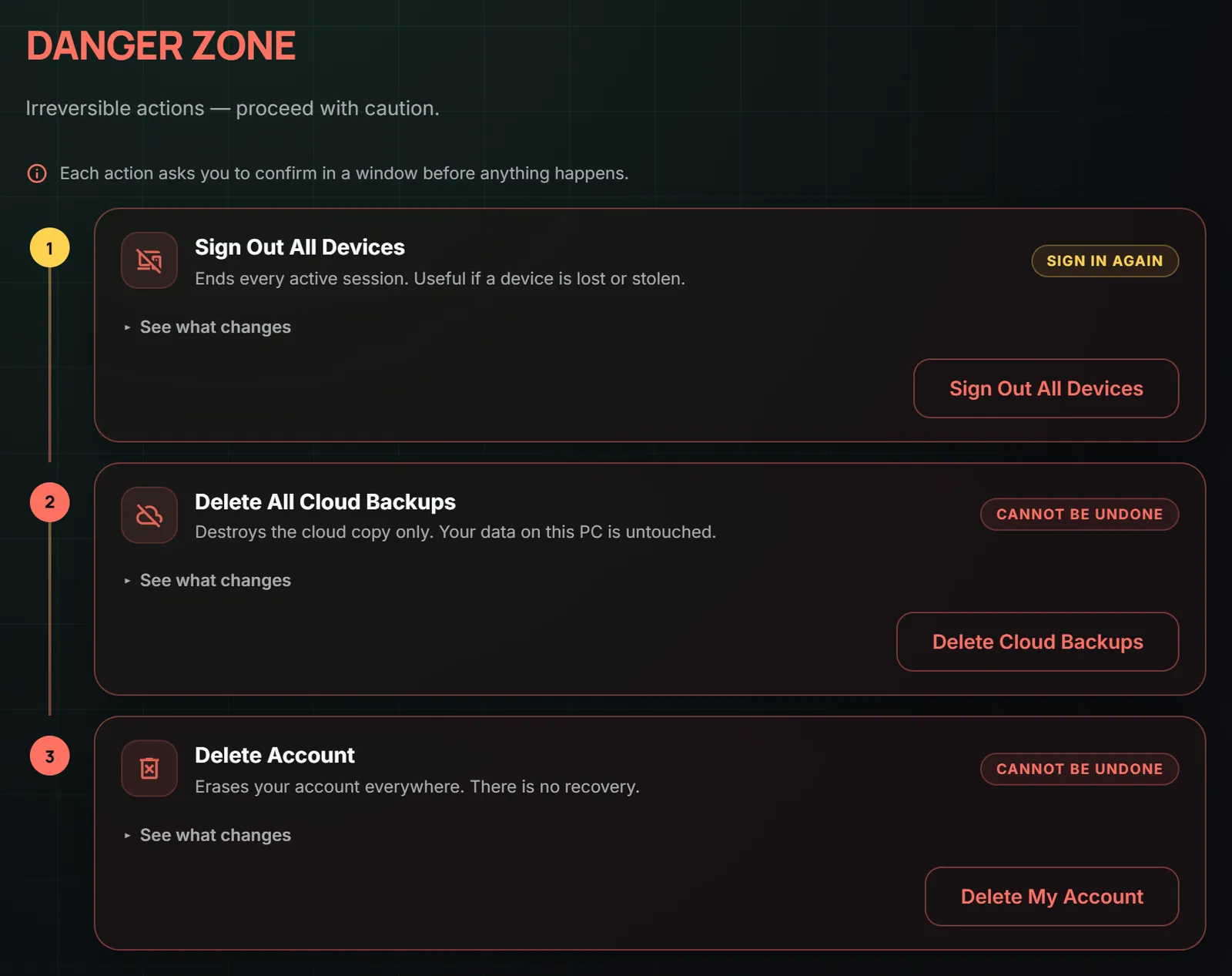
Three actions you rarely need, from mild to final. Each one asks you to confirm in a window first, and See what changes lists what you lose and what you keep.
- 1
Sign Out All Devices. Ends every session on every device, useful if a computer is lost or stolen. Your account, your plan and the data on your computer stay. Guardian keeps watching open trades.
- 2
Delete All Cloud Backups. Deletes the cloud copy only. The data on your computer is not touched. This cannot be undone.
- 3
Delete Account. Erases your account, plan, billing history, profile, and the logs and settings on this computer. There is no recovery.
Questions
Where do I connect or change my broker?
Settings, then Broker Connections. Connect a broker on its ticket, or press Switch on a broker you are already signed in to.
How many computers can I use?
Up to 2 at a time. Remove one under Account, then Devices, to free a slot.
Does LossGuardian upload my trades?
Not unless you turn on cloud backup. Your trading data stays on your computer, and crash reports never include your trades, amounts or prices.