
LossGuardian guide
Your Paused and Done screen
When Advanced Mode pauses you, or you are done for the day, your trading site does not just go blank. In its place you see your own day: how much of your plan you have used, which trades cost you, and when you can trade again. Use these minutes. Look at your numbers, find the mistake, and get ready for the next trade with a clear head.
A pause is time to think, not time to wait
Most traders spend a pause staring at the chart, counting down to the next entry. That is how a pause turns into a revenge trade the second it ends.
This screen gives the time a job. Everything you need to understand your day is on one page, so the pause becomes a short review. You come back knowing where you stand.
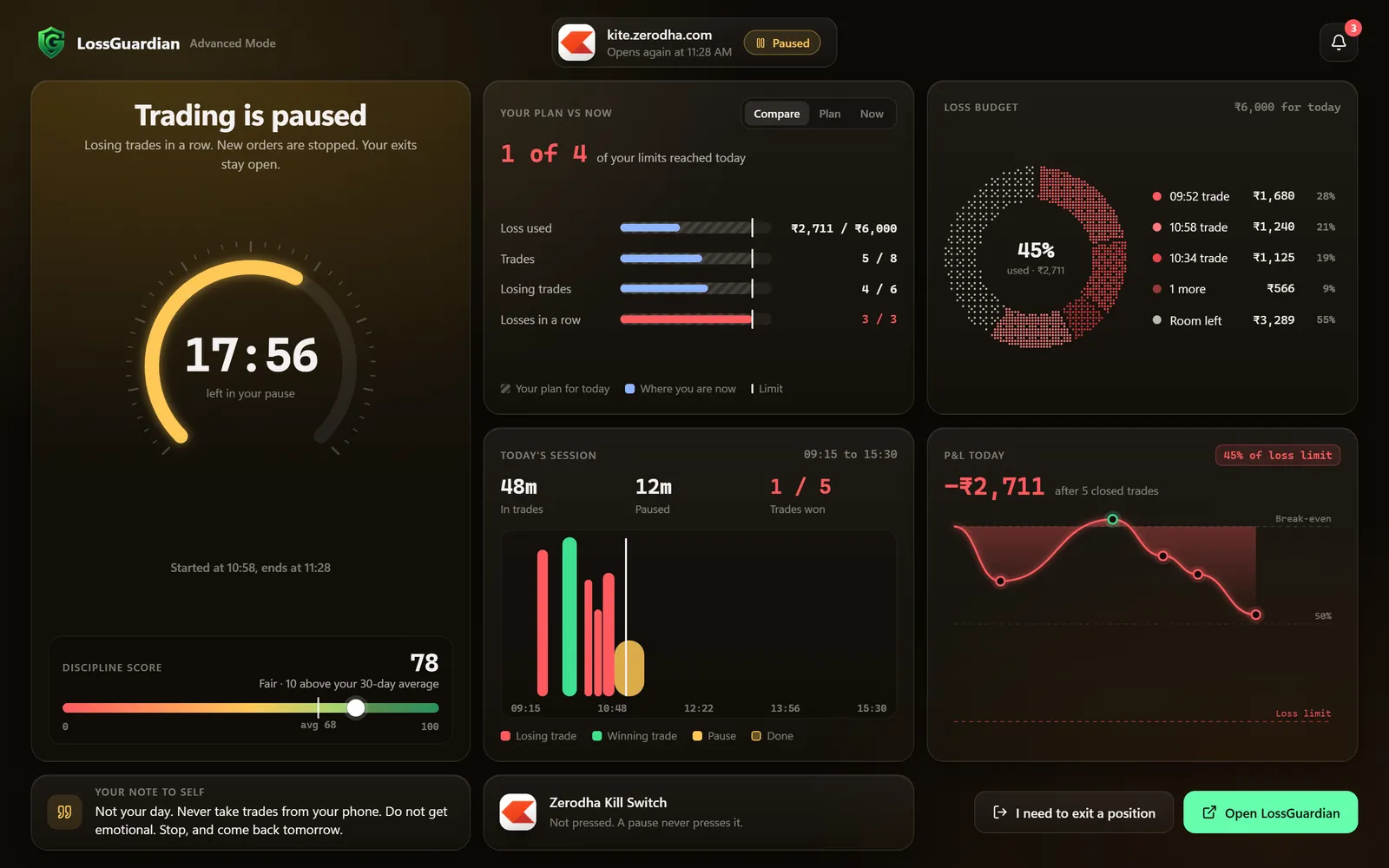
What each part shows
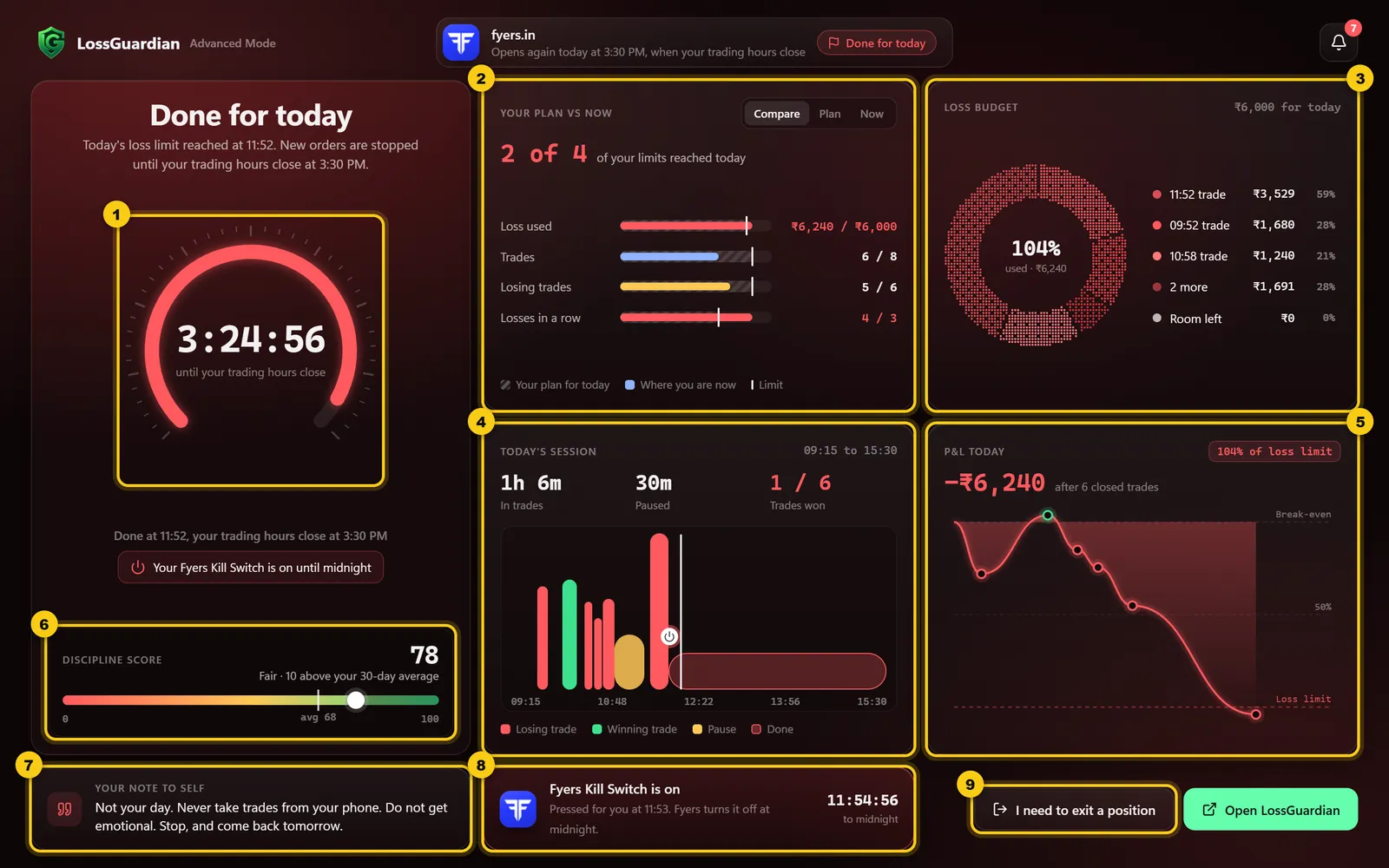
- 1
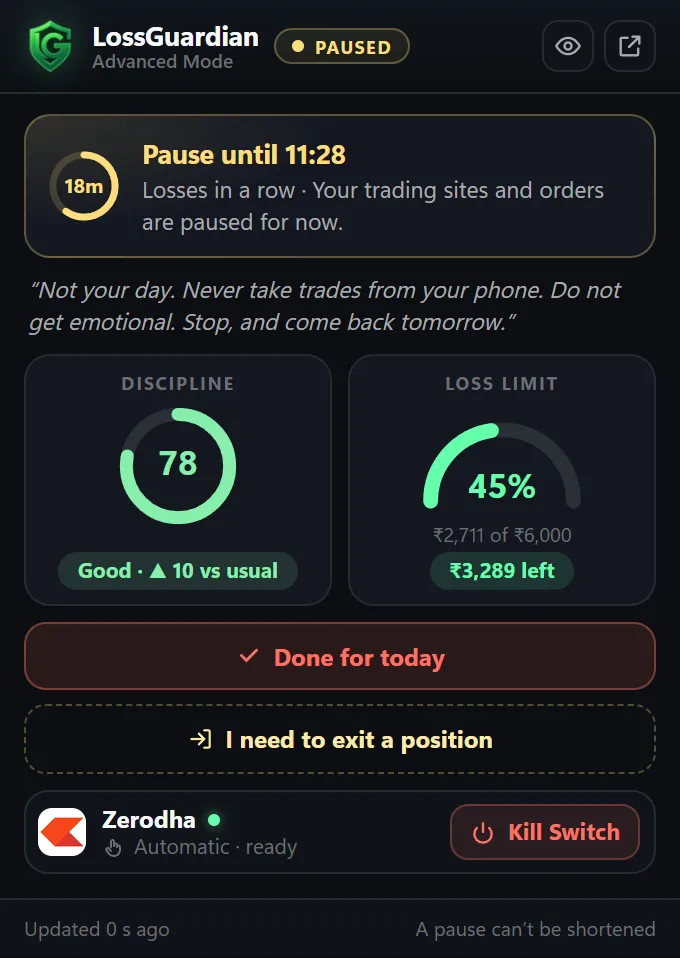
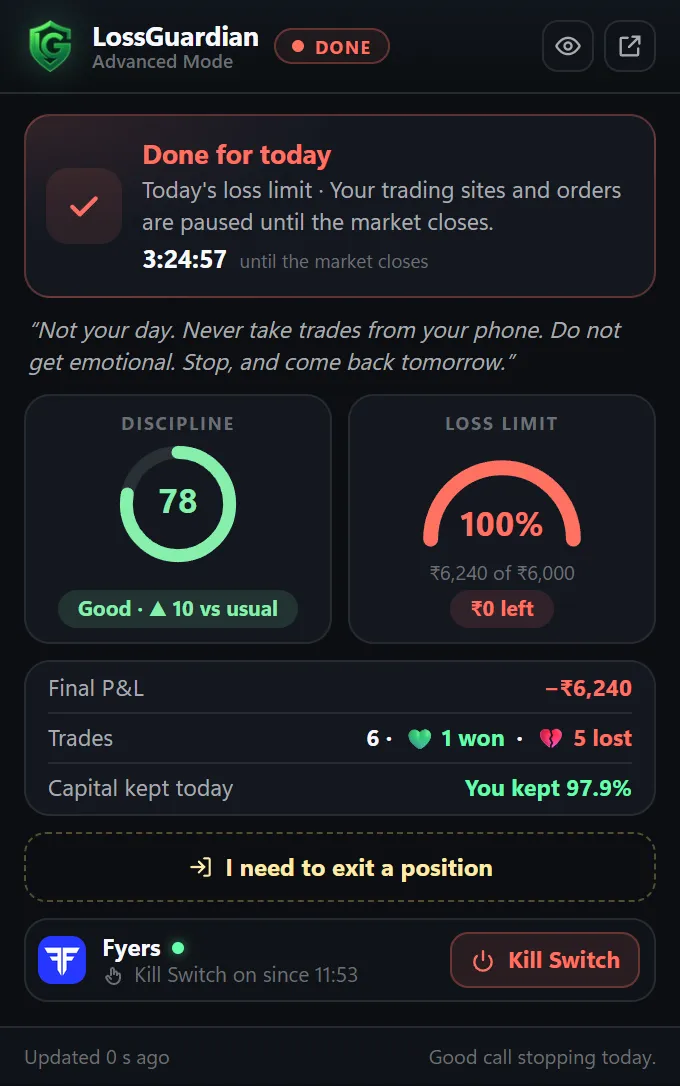
Countdown. How long until you can trade again. A pause counts down only while you have no open trade. Done for today lasts until your trading hours close.
- 2
Your plan vs now. Each limit you set this morning, and how close you are to it. Switch between Compare, Plan and Now.
- 3
Loss budget. Your daily loss limit as a ring. Each slice is one losing trade, biggest first, and what room is left.
- 4
Today’s session. Every trade on a timeline: red for losses, green for wins, with your pauses and your Done marked. Plus time in trades and time paused.
- 5
P&L today. How your day moved, from break-even to where you are now, against your loss limit.
- 6
Discipline score. Today’s score next to your 30-day average.
- 7
Your note to self. The line you wrote when you were calm. Read it now.
- 8
Kill Switch. Whether your broker’s Kill Switch is on, and when it comes off.
- 9
I need to exit a position. Exits always stay open. One click opens orders for a few minutes, so you can close the trade or place its stop-loss or target.
The bell at the top right lists today’s alerts, in order.
How to use a pause, in five steps
- 1
Look at the session timeline. Find the trade that started the slide, and note the time.
- 2
Check your plan vs now. Which limit are you closest to?
- 3
Look at the loss budget. Was one trade much bigger than the rest? That is usually the emotional one.
- 4
Read your note to self.
- 5
Decide your next trade before the pause ends: the setup, the size and the stop-loss. If you cannot name it, you are not ready to trade it.
Done for today, and when the Kill Switch is on
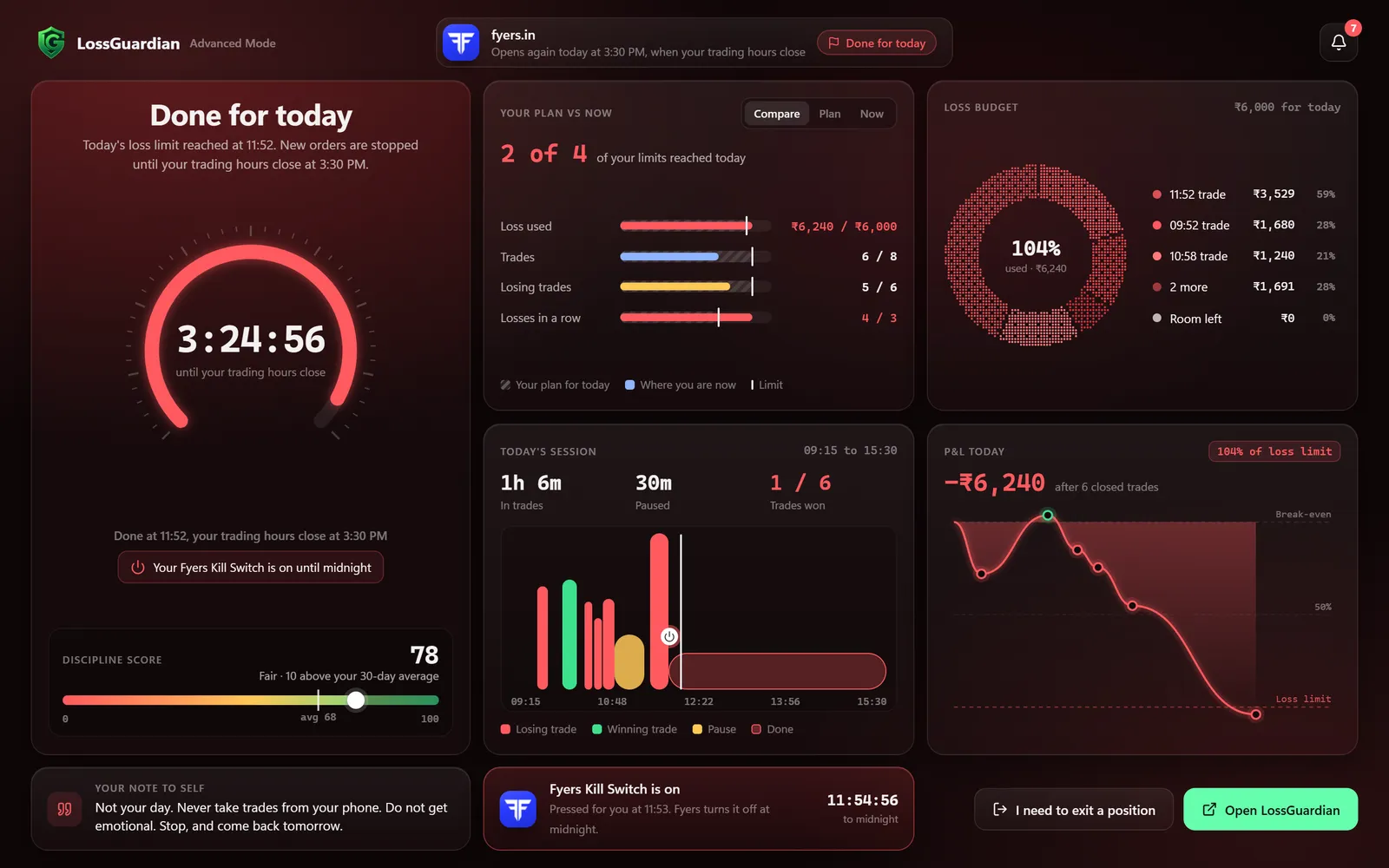
When a rule ends your day, the screen turns red and counts down to the close of your trading hours. If your broker’s Kill Switch is on, you see it too, with the time your broker turns it off.
When you can trade again
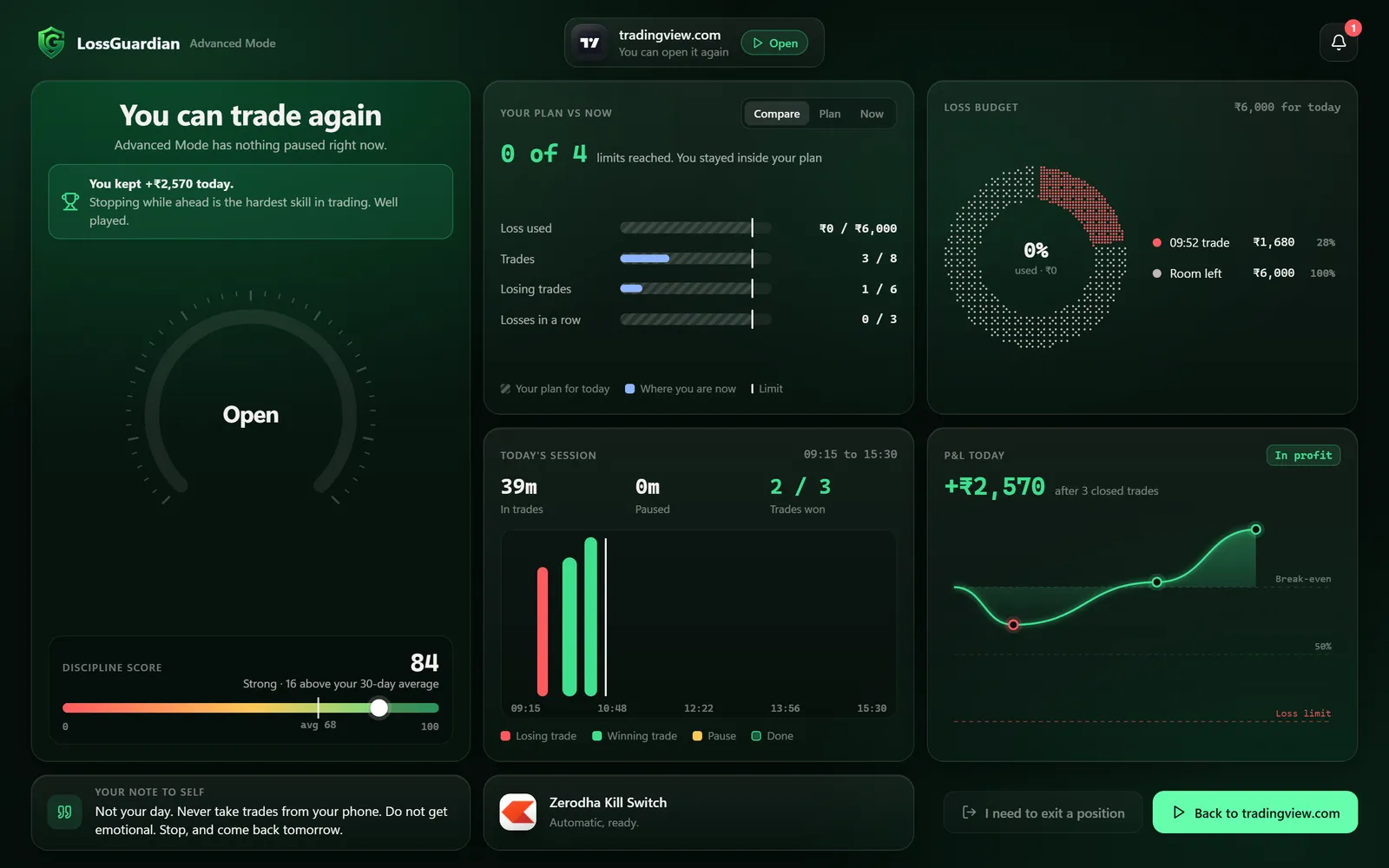
When the pause ends, the same page tells you so and turns green. One button takes you back to the site you were on.
Your day in the toolbar
Click the LossGuardian button in your browser toolbar, or press Alt+Shift+L, for a short version: your status, your note, your discipline score and your loss limit. From there you can also press Done for today yourself.
Questions
Where do these numbers come from?
From LossGuardian on your computer, which reads your trades from your broker. The screen only shows them.
Can I still close a trade while I am paused?
Yes. Exits always stay open. Press I need to exit a position and orders open for a few minutes.
Why does my pause timer stop?
A pause counts down only while you have no open trade. Close the trade and the timer runs again.
Can I hide the rupee amounts?
Yes, in the toolbar popup. Press the eye button to hide or show amounts.