
LossGuardian guide
Risk Manager: set your rules
Risk Manager is where you write your trading rules down, once, before the market opens. Every other part of LossGuardian works from these numbers. Each field has an (i) button in the app that explains it.
Capital risk and limit breach
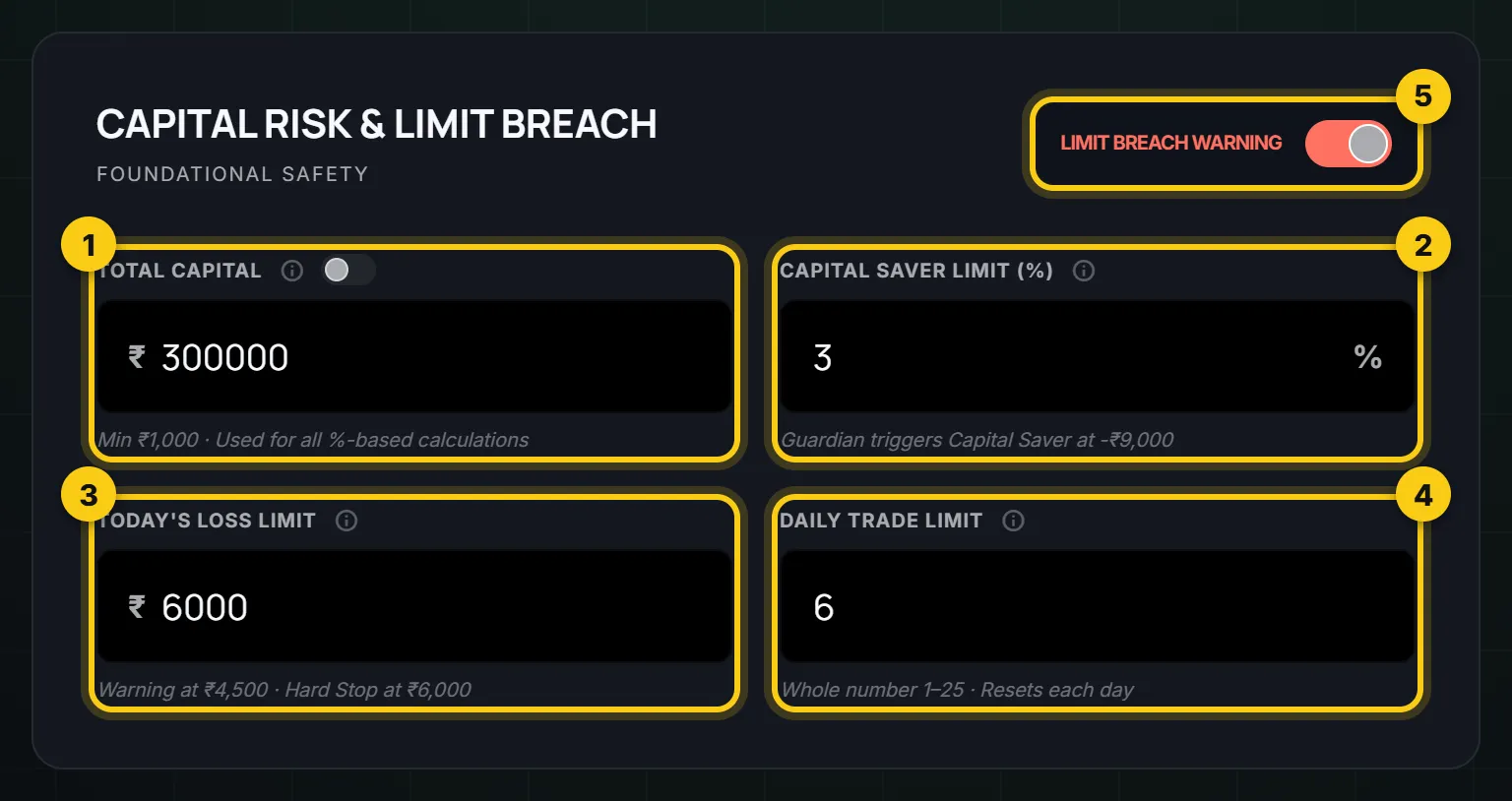
- 1
Total capital. Your trading capital, used for every percentage limit. Switch it on to read it from your broker at your first login each day. It cannot be changed during market hours.
- 2
Capital Saver limit. The most of your capital you can lose in a day, as a percentage: up to 10%, or 20% if your capital is under ₹10,000. When it breaks, the day is over, with no reset. It cannot be changed during market hours.
- 3
Today’s loss limit. Your daily loss limit in rupees. You get a warning on the way, and a hard stop when you reach it. It must be less than your Capital Saver amount, and can be changed once a day.
- 4
Daily trade limit. The most trades you take today, 1 to 25. Changed once a day.
- 5
Limit breach warning. Keeps your daily loss limit stop on. Switching it off turns off the loss limit stop only. Capital Saver still protects you.
Trading rules and overtrading
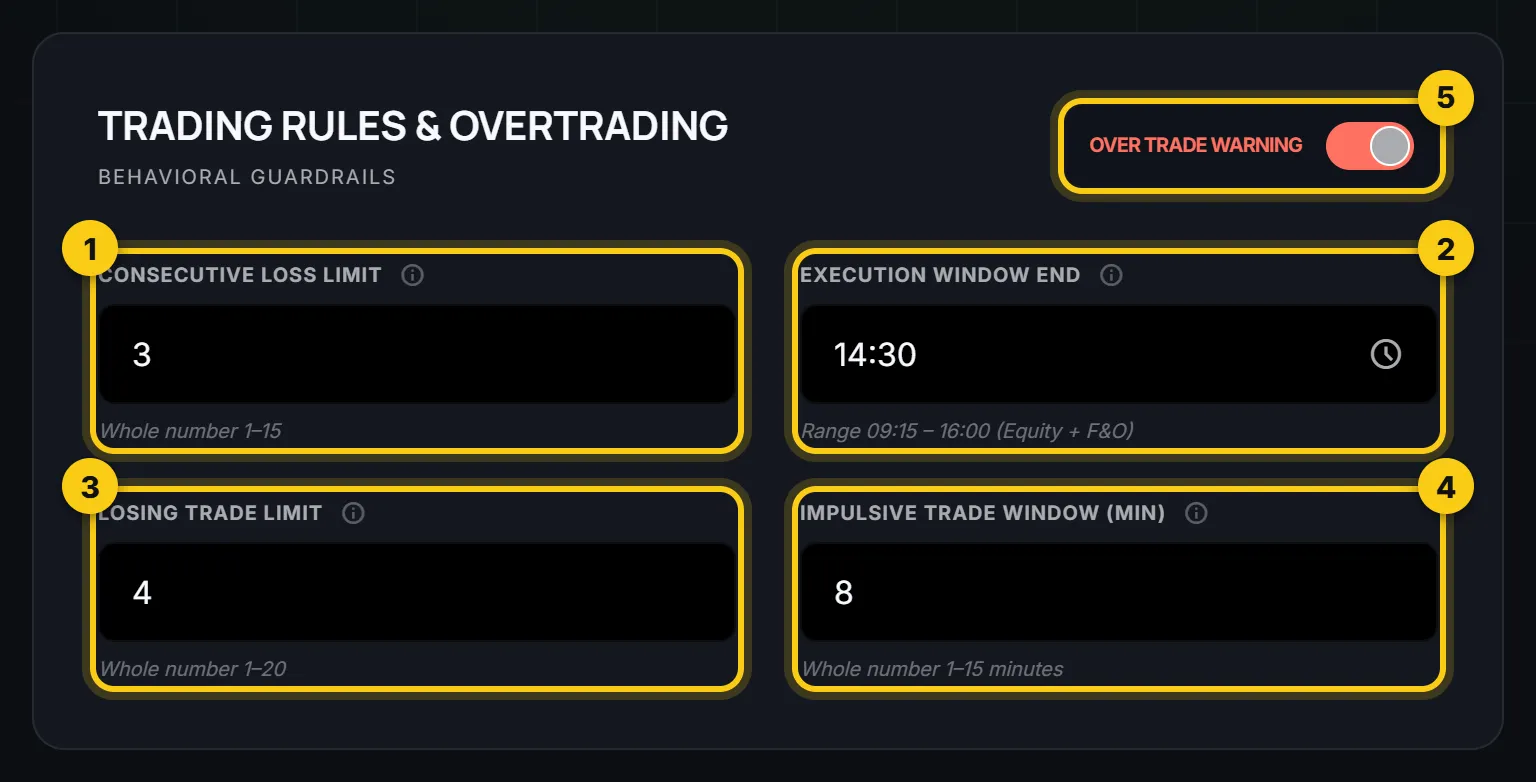
- 1
Consecutive loss limit. Warns you after this many losses in a row, 1 to 15.
- 2
Execution window end. No new trades after this time, for example 14:30. Changed once a day.
- 3
Losing trade limit. The most losing trades you allow today, 1 to 20. Changed once during market hours.
- 4
Impulsive trade window. If you trade again within this many minutes, 1 to 15, it is flagged as an impulse trade.
- 5
Over trade warning. Spots impulsive patterns, such as going back into a contract minutes after you exited it, or adding straight after a loss. Your trade-limit warnings are separate, and keep working if you turn this off.
Advanced risk rules
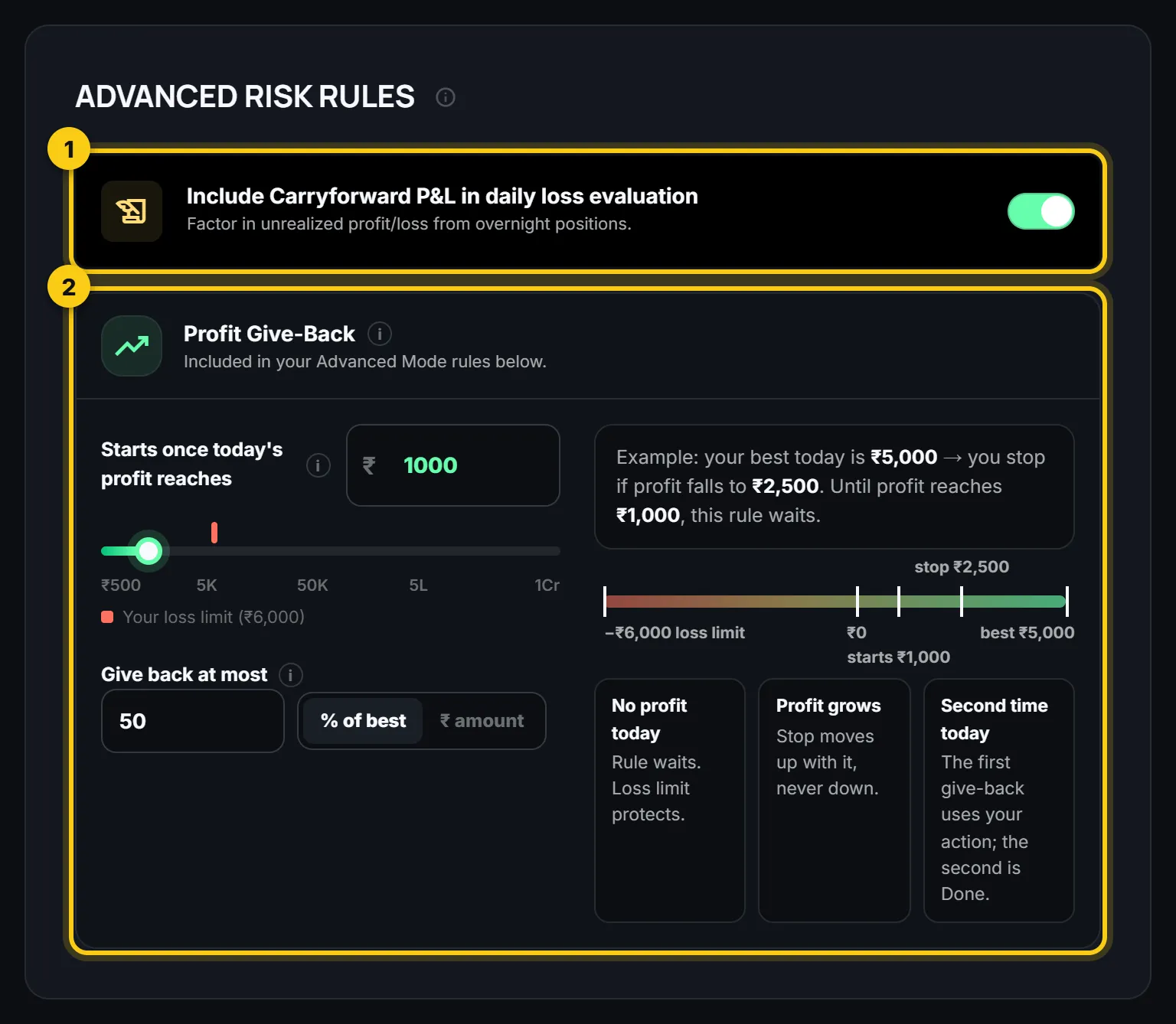
- 1
Include carryforward P&L. Counts the open profit or loss of your overnight positions in your daily loss limit.
- 2
Profit Give-Back. Keeps part of a good day. It starts once your profit reaches an amount you set. If your profit then falls by more than you allow, as a percentage of your best or a rupee amount, it acts. The second time in a day is Done.
Saving, and changing your mind
Press Save Risk Settings at the bottom. During market hours some fields can be changed only once a day, and Capital Saver and total capital not at all. That is on purpose: your rules should be set when you are calm, not in the middle of a bad trade.
After a hard stop you get one reset a day, to a new limit that stays under your Capital Saver. Every change is recorded, so you can see later if you loosened your own rule.
Questions
What daily loss limit should I set?
A number you can lose without it hurting tomorrow. Many traders use 1 to 2 percent of capital. The free loss limit calculator helps you work it out.
What is the difference between the loss limit and Capital Saver?
The loss limit is your daily stop, with one reset a day. Capital Saver sits above it and protects the account itself. When it breaks, there is no reset.
Why can I not change some fields during the day?
So a bad moment cannot undo a plan you made calmly. Change them after the close.