
LossGuardian guide
Guardian Control: start Guardian and check it is working
Guardian is the part of LossGuardian that watches your trades. It only protects you while it is running, so Guardian Control is the page to check before the market opens: is it on, is the data arriving, are my limits switched on. It takes ten seconds.
What each part shows
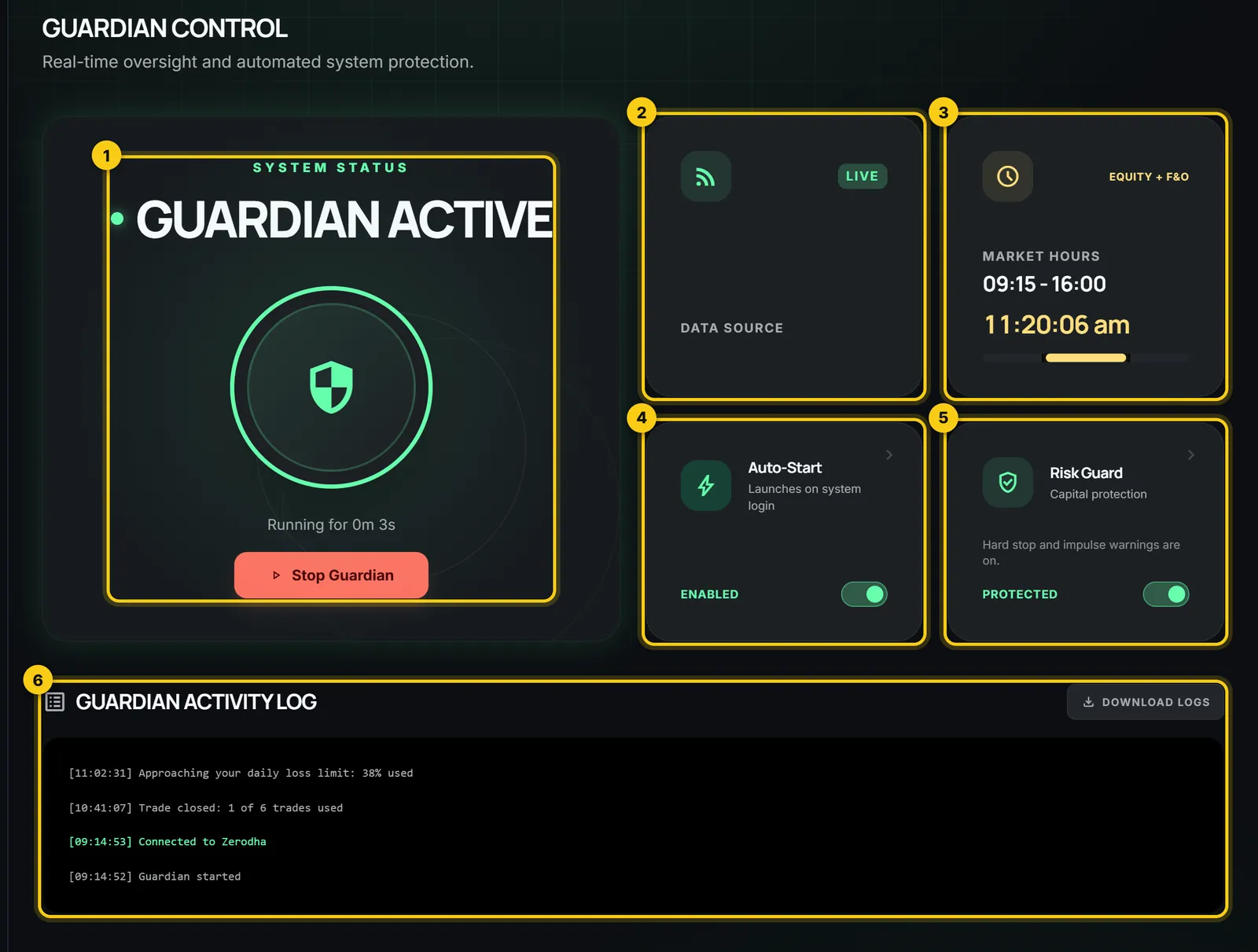
- 1
System status and the button. GUARDIAN ACTIVE means Guardian is watching. GUARDIAN OFF means nothing is. Under the circle you see how long it has been running. The button starts or stops it.
- 2
Data Source. Whether your trades and prices are coming in. The badge is explained below.
- 3
Market Hours. The trading hours Guardian uses, and the clock. If you trade more than one segment, the hours cover all of them.
- 4
Auto-Start. Whether LossGuardian opens by itself when you sign in to your computer. Click the tile to change it in Settings.
- 5
Risk Guard. A one-word check on your protection: Protected, Partially Protected or Not Protected. Click it to open Risk Manager.
- 6
Activity Log. Today’s events in order. Download Logs saves the log to your Downloads folder, handy if you need to contact support.
The same status shows at the top of every page: whether the market is open and whether Guardian is active.
Start Guardian before the market opens
- 1
Connect your broker. Guardian cannot start without a connected broker, and it tells you so.
- 2
Open Guardian Control and press Start Guardian. The button turns red and the status changes to GUARDIAN ACTIVE.
- 3
Check the Data Source badge and the Risk Guard tile. Both should look healthy.
Guardian only watches while it is running. Start it each trading day, or switch on Auto-Start so LossGuardian opens when you sign in.
If you are still on the default limits, LossGuardian warns you when you start. It never stops you from starting, but set your own limits first.
Set your limits in Risk ManagerRead the Data Source badge
- LIVE: prices are arriving live. This is what you want during the day.
- RECONNECT: the live connection dropped. Guardian keeps watching at a slower pace while it reconnects.
- POLLING: you have no open positions, so Guardian checks every 15 seconds.
- GRACE: you just exited. For three minutes Guardian keeps watching closely, in case you jump straight back in.
- OFF: Guardian is not running.
Read the Risk Guard tile
Risk Guard looks at two switches in Risk Manager: your hard stop and your impulse warnings. Protected means both are on. Partially Protected means the hard stop is on and impulse warnings are off. Not Protected means the hard stop is off.
If Guardian is off while you have open positions, the tile says so, with the number of positions that are not being watched.
Stopping Guardian during the day
Guardian asks you first if you stop it while the market is open. Once stopped, nothing watches your loss limits until you start it again.
If a pause or Done for today is on, it stays on. Guardian stays off for the rest of the day unless you start it again.
The red Hard Stop button at the bottom left of the app is different: it ends your trading day on purpose. With Advanced Mode on, it opens Take a pause, so you can choose a short break or Done for today.
Set up Advanced ModeQuestions
Do I have to start Guardian every day?
Yes, unless Auto-Start is on. With Auto-Start, LossGuardian opens when you sign in to your computer, so check the status each morning.
Why will Guardian not start?
Usually no broker is connected, or a hard stop has already ended your day. LossGuardian tells you which one.
Does Guardian place or close trades?
No. LossGuardian never places, changes or cancels an order. It watches, and it warns you.
What does Not Protected mean?
Your hard stop is off in Risk Manager, so nothing ends a losing day. Turn it on, or accept that you are trading without it.