
LossGuardian guide
Alerts Designer: choose how LossGuardian speaks to you
An alert you ignore protects nothing. Alerts Designer lets you decide where each alert appears, how long it stays, how loud it is, and what it says, so the warning is one you will actually read. You can even write the message yourself, in your own words, while you are calm.
What each part shows
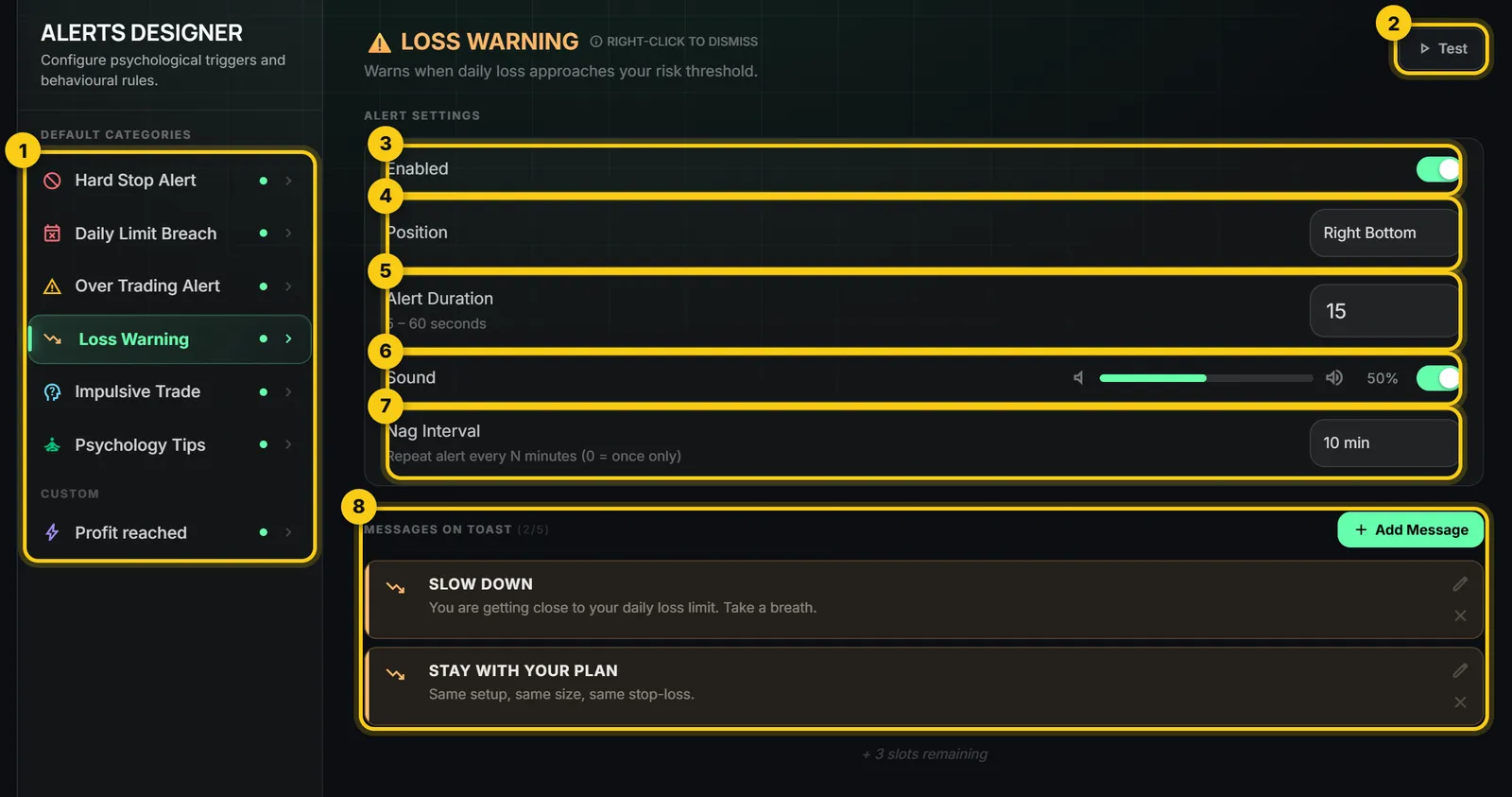
- 1
Your alerts. The six built-in alerts, then your own custom ones. A green dot means the alert will fire. A red dot means it will not.
- 2
Test. Shows you the real alert right now, so you can see where it lands and hear how it sounds.
- 3
Enabled. Turns this alert on or off. The Hard Stop Alert has no off switch, because it is your last line of protection.
- 4
Position. Which part of your screen the alert appears in: the centre, a corner, or the top or bottom centre.
- 5
Alert Duration. How long the alert stays, from 5 to 60 seconds.
- 6
Sound. A chime when the alert appears, with its own volume from 10% to 100%.
- 7
Nag Interval. How often the alert repeats while the problem is still there. Pick a number of minutes, or Once only.
- 8
Messages on toast. Your own words, shown with the alert. Add up to 5.
Your changes save by themselves.
The six built-in alerts
- Hard Stop Alert: appears when your hard stop ends your trading day. It cannot be turned off.
- Daily Limit Breach: appears when you cross your daily loss limit.
- Over Trading Alert: appears when you go past the limit you set.
- Loss Warning: appears as your day’s loss gets close to your limit.
- Impulsive Trade: appears when your trading looks emotional, and starts a cooldown countdown.
- Psychology Tips: short reminders to stay disciplined, every few minutes you choose.
Hard Stop, Daily Limit Breach and Over Trading alerts cannot be closed by hand. They close after the time you set. The others close when you right-click them.
A few alerts have extra settings
- Impulsive Trade has a Cooldown Timer, from 5 to 60 minutes. A countdown shows in the top right of your screen.
- Psychology Tips has a Repeat Interval, from 10 to 60 minutes.
- Random Psychology Tips is an extra tip that is off until you turn it on. It never appears at the same time as a mindset check.
Put your own words on the alert
Press Add Message on any alert. Give it a title of up to 60 characters and a short line under it, up to 140 characters. You can add up to 5 messages to one alert.
Write them when you are calm, as if you were talking to yourself at the worst moment of the day. Then they are in front of you at that moment.
You can drop live numbers into a message, and they are filled in when the alert appears: {realized} for booked P&L, {total} for total P&L, {trades} for your trade count and {open} for open positions.
When an alert is greyed out
Two alerts follow switches in Risk Manager. Daily Limit Breach follows the Limit Breach Warning switch. Impulsive Trade follows both the Limit Breach Warning and the Over Trade Warning switches, and is greyed out only when both are off. A greyed out alert has a red dot and its Test button is switched off, because the alert would not fire. Turn the switch back on in Risk Manager and your settings here are still waiting.
Make your own alert
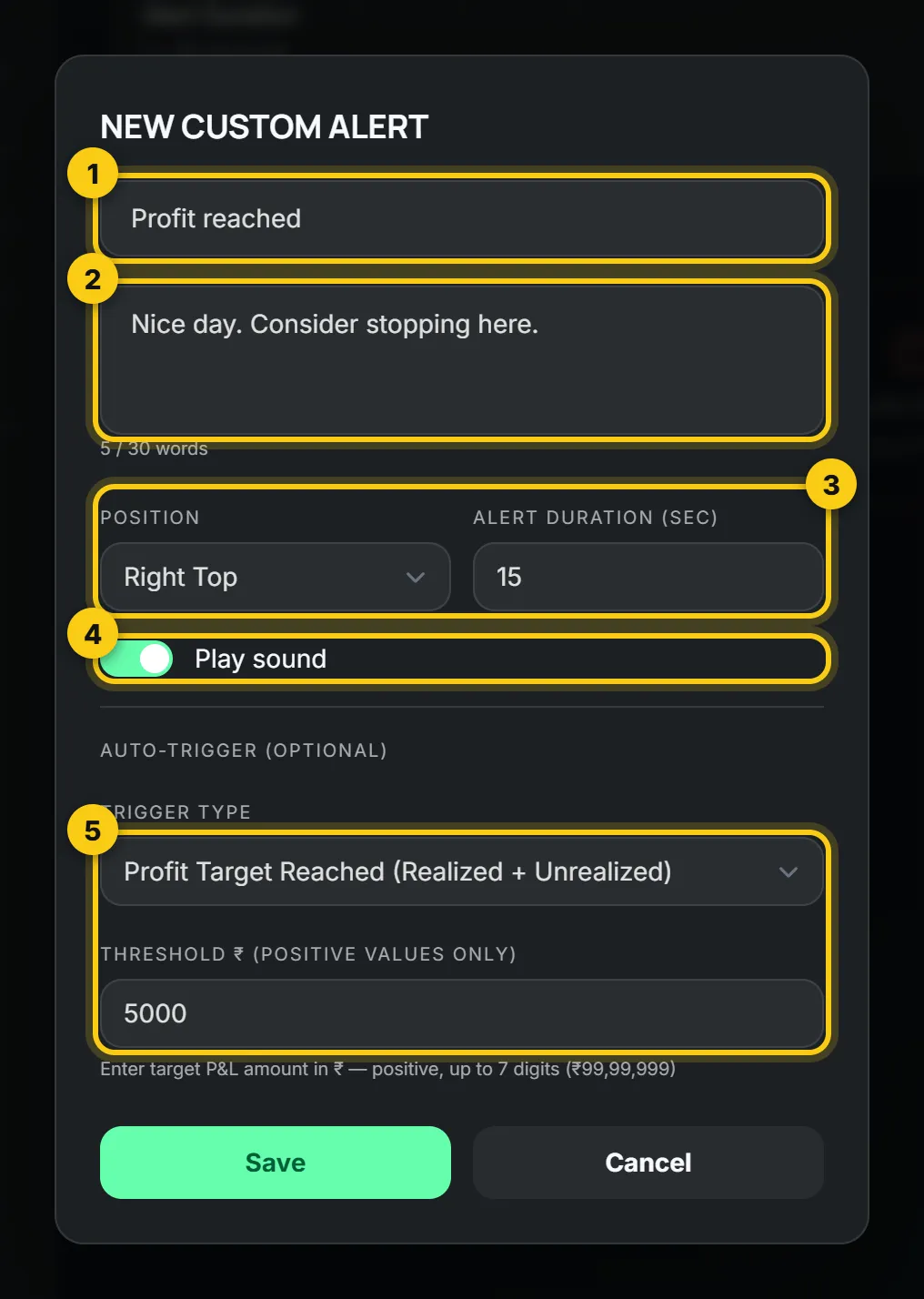
- 1
Name. Up to 40 characters.
- 2
Message. Up to 30 words, shown under the name.
- 3
Position and duration. The same choices as the built-in alerts.
- 4
Play sound. On or off.
- 5
Auto-trigger. Optional. Choose when the alert fires by itself, and the amount or time it needs.
You can have up to 8 custom alerts. With no trigger, the alert fires only when you press Test.
What a custom alert can fire on
- P&L crosses an amount: your booked P&L reaches the figure you set.
- Profit target reached: your booked and open P&L together reach the figure you set.
- A specific time, once or every trading day. For example, a reminder to stop at 2:30 pm.
- Every N minutes through the session: 5, 10, 15, 20, 30 or 60.
Amounts must be positive, up to 7 digits.
A five-minute setup
- 1
Press Test on each alert, so you know what you will see and hear.
- 2
Move Loss Warning to a spot you will notice but that does not cover your chart.
- 3
Write one message on Loss Warning that you would listen to.
- 4
Set the Nag Interval, so a warning you ignored comes back.
- 5
Add one custom alert for a profit target, so a good day has a clear stopping point.
Questions
Can I turn off every alert?
You can turn off most of them. The Hard Stop Alert cannot be turned off, because it tells you your day has ended.
Where do the alerts appear?
On your screen, in the position you choose for each alert. You can test each position before the market opens.
Do alerts place or close trades?
No. LossGuardian never places, changes or cancels an order. Alerts only warn you.
Why is an alert greyed out?
Its switch is off in Risk Manager. Turn that switch on and the alert is available again, with your settings kept.