
Advanced Mode
Advanced Mode: when you break a rule, your trading actually stops
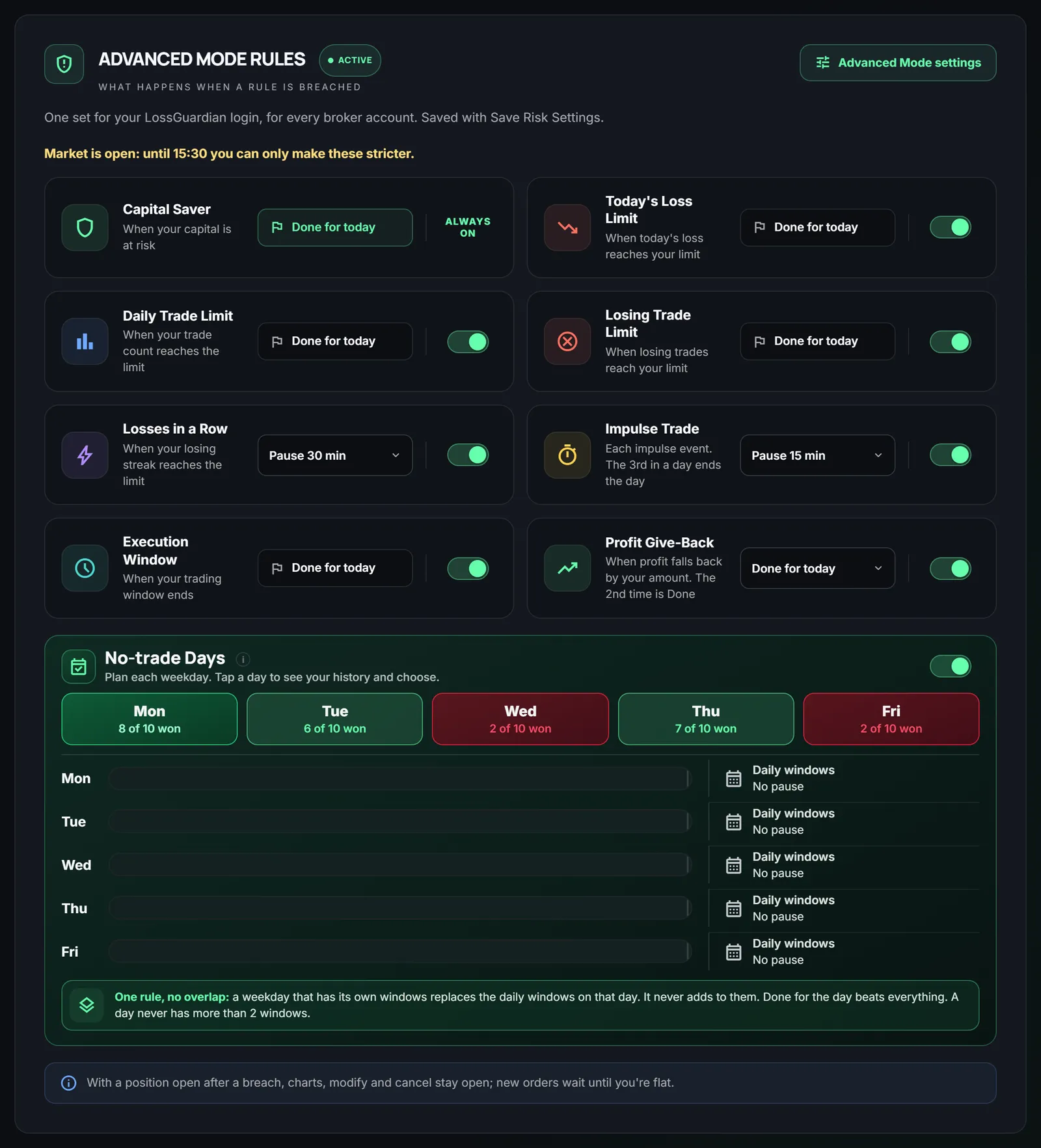
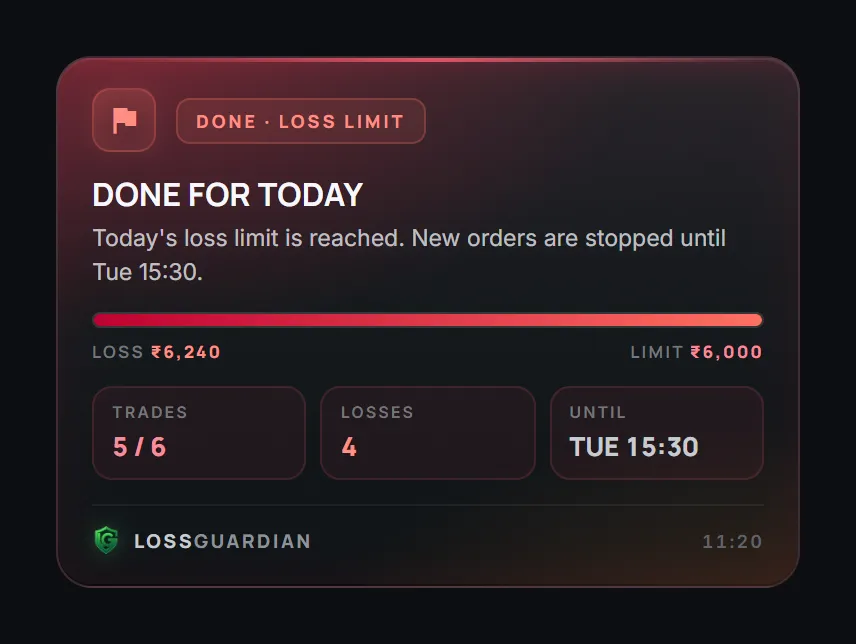
LossGuardian has two modes. Alerts only warns you with alerts you cannot click away, and the decision stays with you. Advanced Mode goes further: when a rule you chose breaks, new orders pause on your computer for a set time or for the rest of the day. Exits always stay open. It is optional, and you decide how strict each rule is.
An alert you can close is an alert you will close
Every trader knows their rules. Stop at the loss limit. No revenge trade after a stop-loss. Two losses in a row, take a break. The rules are not the problem.
The problem is the minute after a loss. Emotion is loud, the rule feels negotiable, and an alert is one click from gone.
Advanced Mode removes the negotiation. You set the rules calmly in the morning. When one breaks, the pause or the end of the day simply happens. You get a breather instead of a disaster.
How Advanced Mode works
- 1
Turn on Advanced Mode in Settings and agree once.
- 2
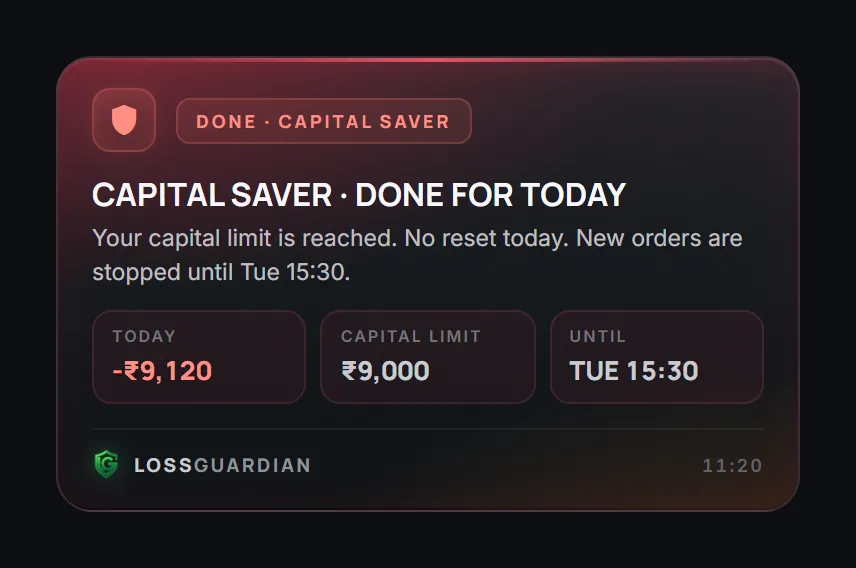
In Risk Manager, choose Pause or Done for each rule. Capital Saver is always Done.
- 3
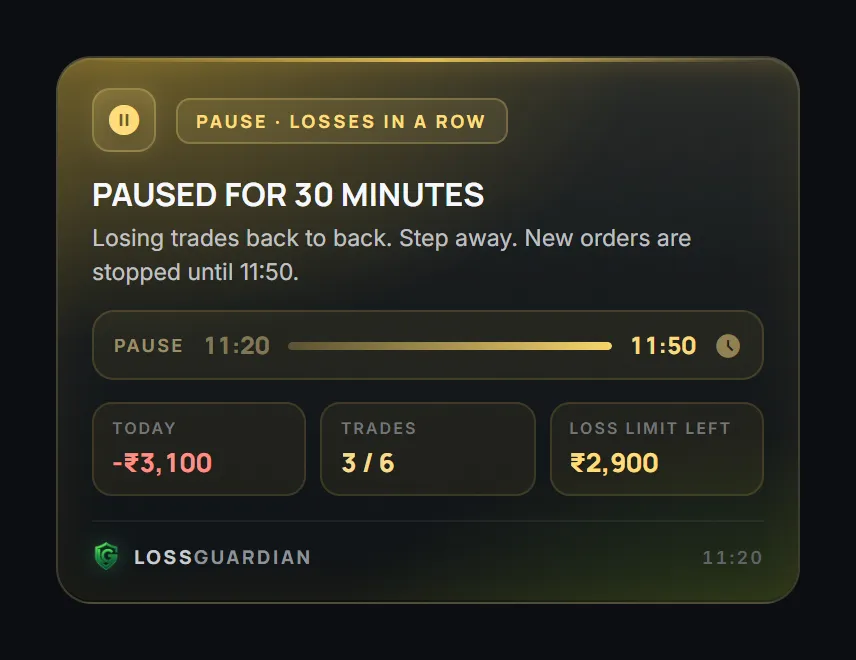
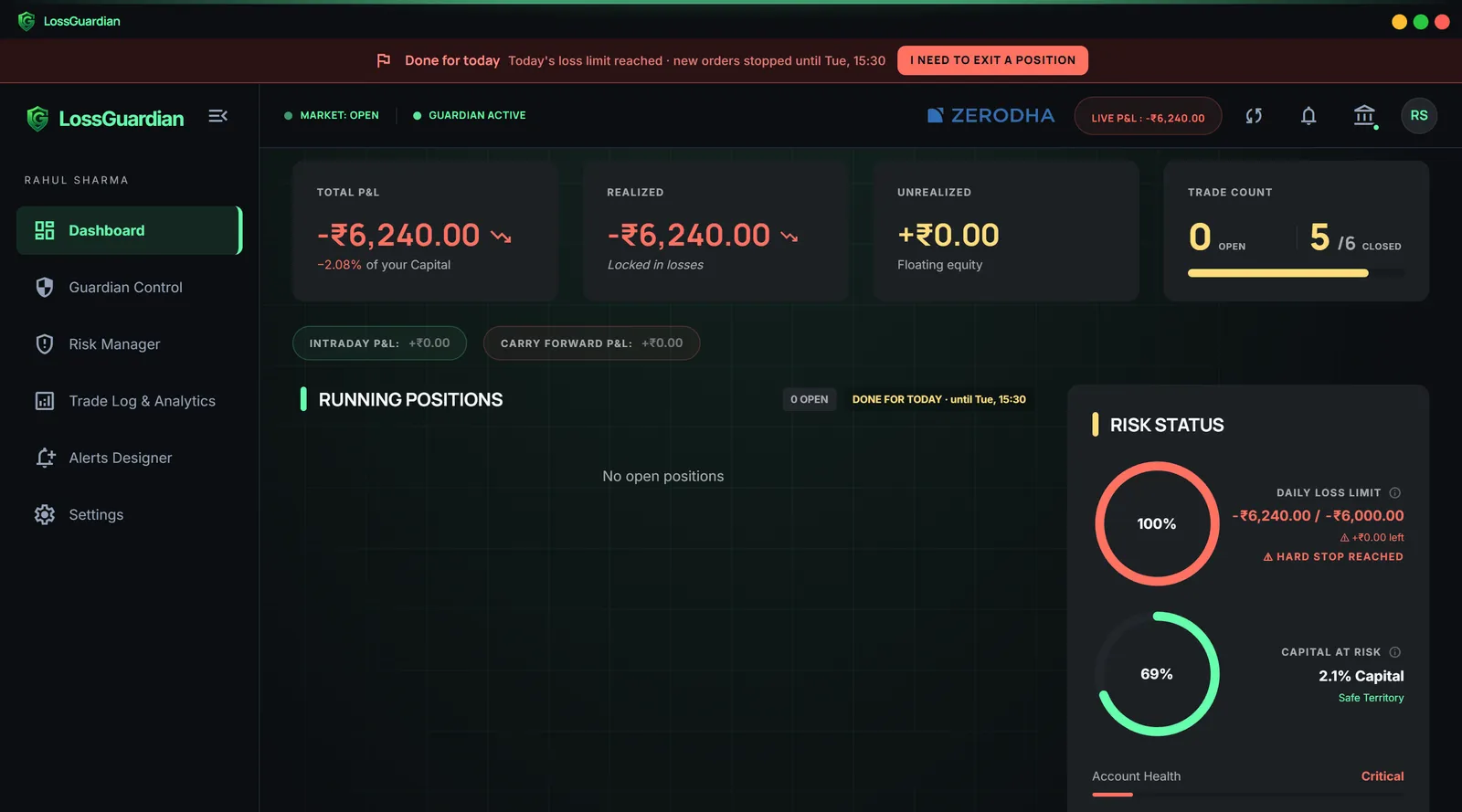
Trade as normal. When a rule breaks, you see a pause with its end time, or Done for today until the close.
- 4
Need to exit a position? Press “I need to exit a position” and orders open for 1 to 5 minutes, your choice, to close it or place its stop-loss or target.
- 5
The next trading day starts fresh.
As strict or as light as you want
Pause or Done, rule by rule
A 15, 20, 30 or 60 minute pause, or the end of the day. Day limits like the loss limit and trade limit always end the day.
Switch any rule off
Use only the rules that fit how you trade. Capital Saver stays on, because it protects the account itself.
Take a break yourself
Pause for 15 minutes to an hour, until a time, or until you resume. Or press Done for today when you know the day is over.
Hide trading pages
On by default. While you are paused or done, your broker’s trading pages are hidden. Turn it off to keep charts visible.
Pause more sites
Add the charting or trading sites where you slip, up to 30. They pause with your broker.
A note to yourself
Write it while you are calm. It is shown when you are paused or done.
One emergency reset
Off by default. If you turn it on, a stop caused only by your loss limit can be reset once a day, after a reason and a 60 second wait.
Starts with the market
Let Guardian start by itself when the market opens, so it is already watching on a busy morning.
Automatic Kill Switch
Let LossGuardian press your broker’s own Kill Switch when you are done for the day, with your consent.
Alerts only or Advanced Mode
| Alerts only | Advanced Mode | |
|---|---|---|
| When a rule breaks | An alert you cannot click away | A pause or the end of your day |
| New orders on your computer | Up to you | Paused until the time ends |
| Exits | Always open | Always open |
| Your own breaks | Not available | Take a pause or press Done for today |
| Broker Kill Switch | Manual, one click | Manual or Automatic |
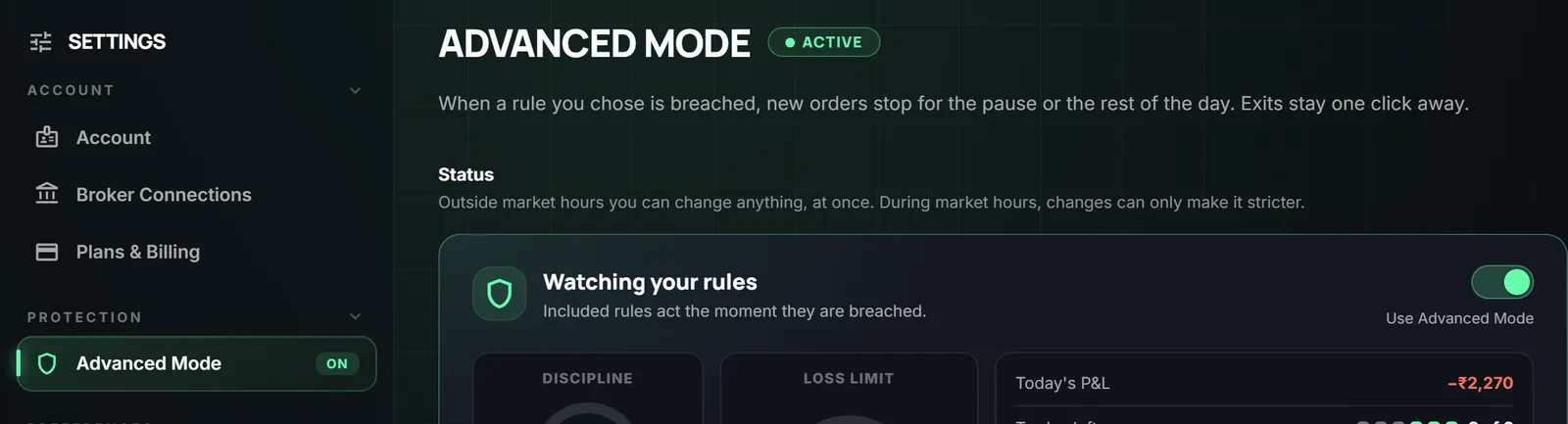
| Changing rules in market hours | Anytime | Only stricter until the close |
The stop Angel One never had
Angel One has no Kill Switch of its own. With Advanced Mode, Angel One traders still get a real stop: when you are done for the day, Angel One’s trading screens and new orders pause on your computer until the market closes.
LossGuardian for Angel OneWhile you are paused, you see where you stand
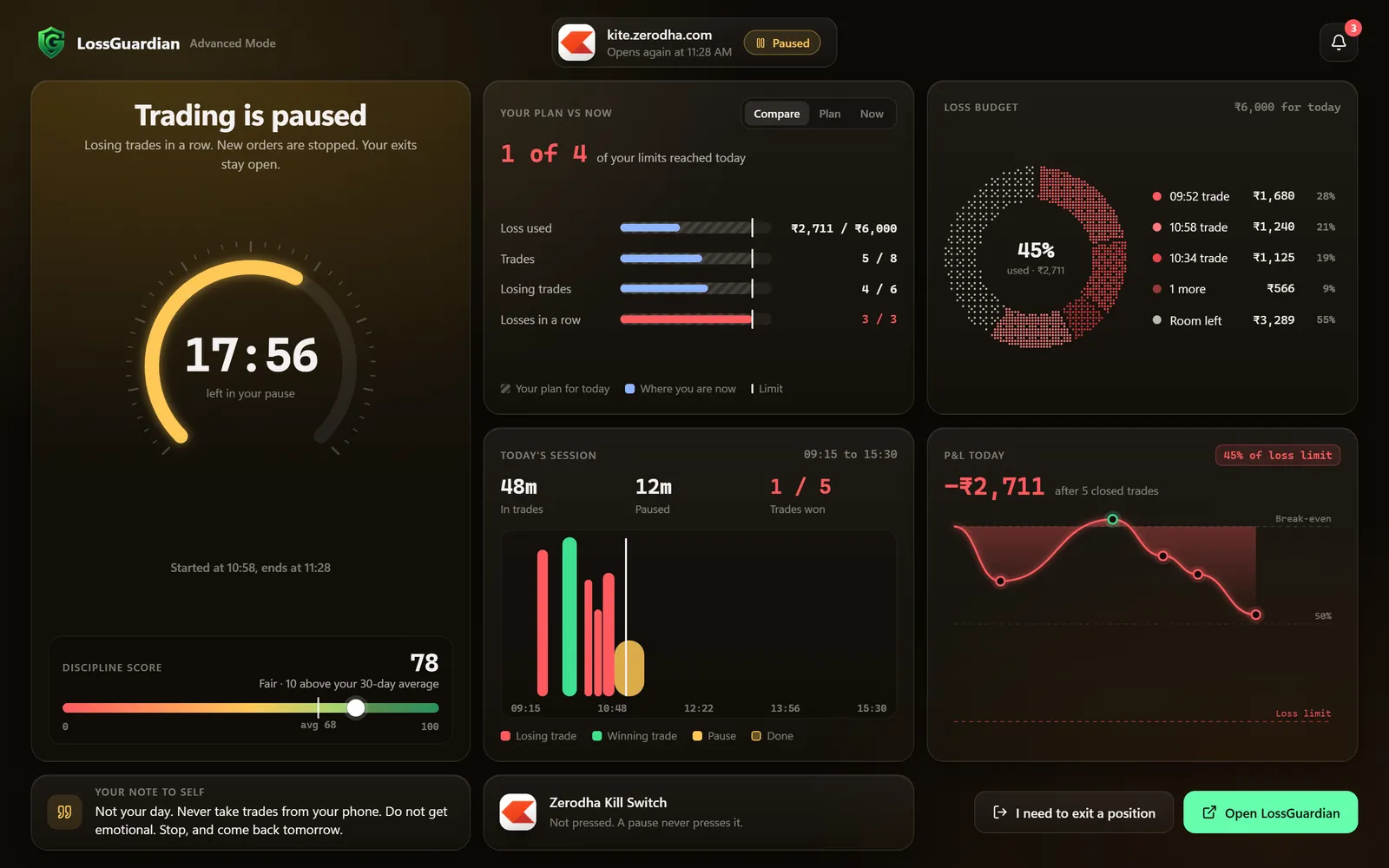
A pause is not dead time. Your trading screen is replaced by your own day: your plan against where you are now, the trades that cost you, your P&L and your discipline score, with a countdown to when you can trade again. Use the minutes to find the mistake and plan the next trade with a clear head.
It never touches your trades
Advanced Mode never places, changes or cancels an order, and it never closes a position. Exits always stay open. It covers trading on your computer, and the same stop applies on your other computer too. Your broker’s phone app is outside it, so if you trade from your phone, add the Automatic Kill Switch, which your broker applies to every device.
Advanced Mode: questions traders ask
What is Advanced Mode in LossGuardian?
An optional mode that turns your rules into stops. When a rule breaks, new orders pause on your computer for a set time or for the rest of the day. Exits always stay open.
Can I still exit a trade when I am paused or done?
Yes. Exits always stay open. Press “I need to exit a position” and orders open for a few minutes, so you can close the trade or place its stop-loss or target.
Do I have to use every rule?
No. Switch off the rules you do not want and choose Pause or Done for the rest. Only Capital Saver always stays on.
Can I change my rules during the day?
During market hours you can only make them stricter. After the close you can change anything, at once.
Does Advanced Mode work with Angel One?
Yes. Angel One has no Kill Switch, so Advanced Mode is the stop for Angel One traders. It works with Zerodha, Fyers, Dhan, Upstox and Groww too.
Does it stop trading from my phone?
Advanced Mode covers your computer. For your phone, use the Automatic Kill Switch: your broker then refuses new orders from every device.
Is Advanced Mode on by default?
No. It is off until you turn it on and agree. Without it, LossGuardian works in Alerts only mode.
Automatic Kill Switch
With your consent, LossGuardian presses your broker’s own Kill Switch for you when you are done for the day. Automatic or Manual, for Zerodha, Fyers, Dhan, Upstox and Groww.
See Automatic Kill SwitchRead more
- No. 1 automated risk management software for traders (2026)
- How to stop trading after a loss automatically (kill switch after your limit)
- How to stop revenge trading: methods that actually work
- How to stop overtrading: a beginner's guide
See all features · Works with Zerodha, Fyers, Dhan, Upstox, Angel One and Groww