
Automatic Kill Switch
Automatic Kill Switch: your broker’s own Kill Switch, pressed for you
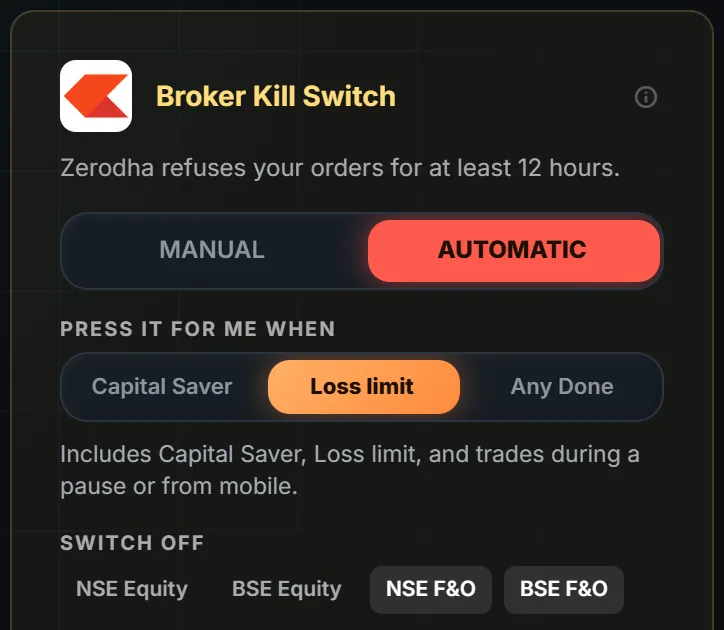
With your consent, LossGuardian presses your broker’s own Kill Switch for you when you are done for the day. You choose which stops lead to it. It waits until you are out of your trades, and it never places, changes or cancels an order. Prefer to do it yourself? Manual mode takes you to your broker’s Kill Switch page in one click.
The Kill Switch works. Pressing it is the hard part.
Most Indian brokers have a Kill Switch. Once it is on, your broker refuses new orders until its own timer ends. It is the strongest stop a trader can have, because it covers every device, your phone included.
Almost nobody uses it. The moment you should press it is the moment you least want to. You are down more than you planned, one more setup is on the screen, and the switch stays off. Every time.
The Automatic Kill Switch fixes the timing. You decide in the morning, when you are calm. LossGuardian keeps that promise for you in the afternoon, when you are not.
How to set up the Automatic Kill Switch
- 1
Turn on Advanced Mode in Settings.
- 2
In Risk Manager, set your broker’s Kill Switch to Automatic and give your consent. Once per broker.
- 3
Choose when it presses: Capital Saver only, Loss limit, or Any Done.
- 4
For Zerodha and Upstox, pick the segments to switch off. F&O is the default.
- 5
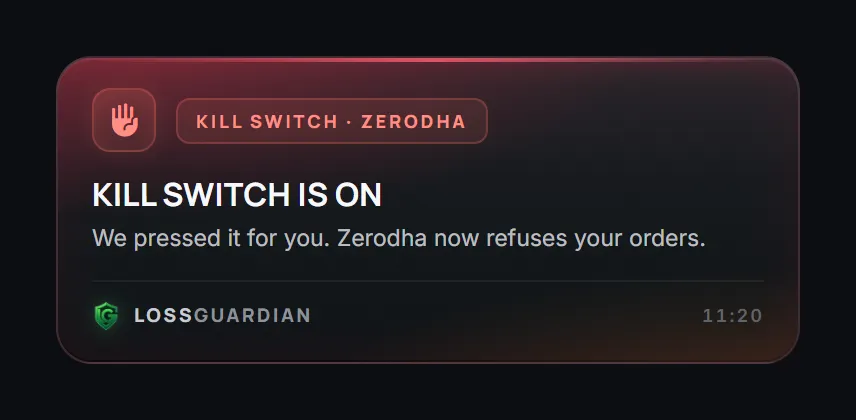
Trade as normal. When you are done for the day and out of your trades, LossGuardian presses your broker’s Kill Switch and shows you “Kill Switch is on”.
You choose when it presses
Capital Saver
Presses only when your hardest limit breaks, the one that protects your account. For traders who want protection from a disaster day and nothing more.
Loss limit
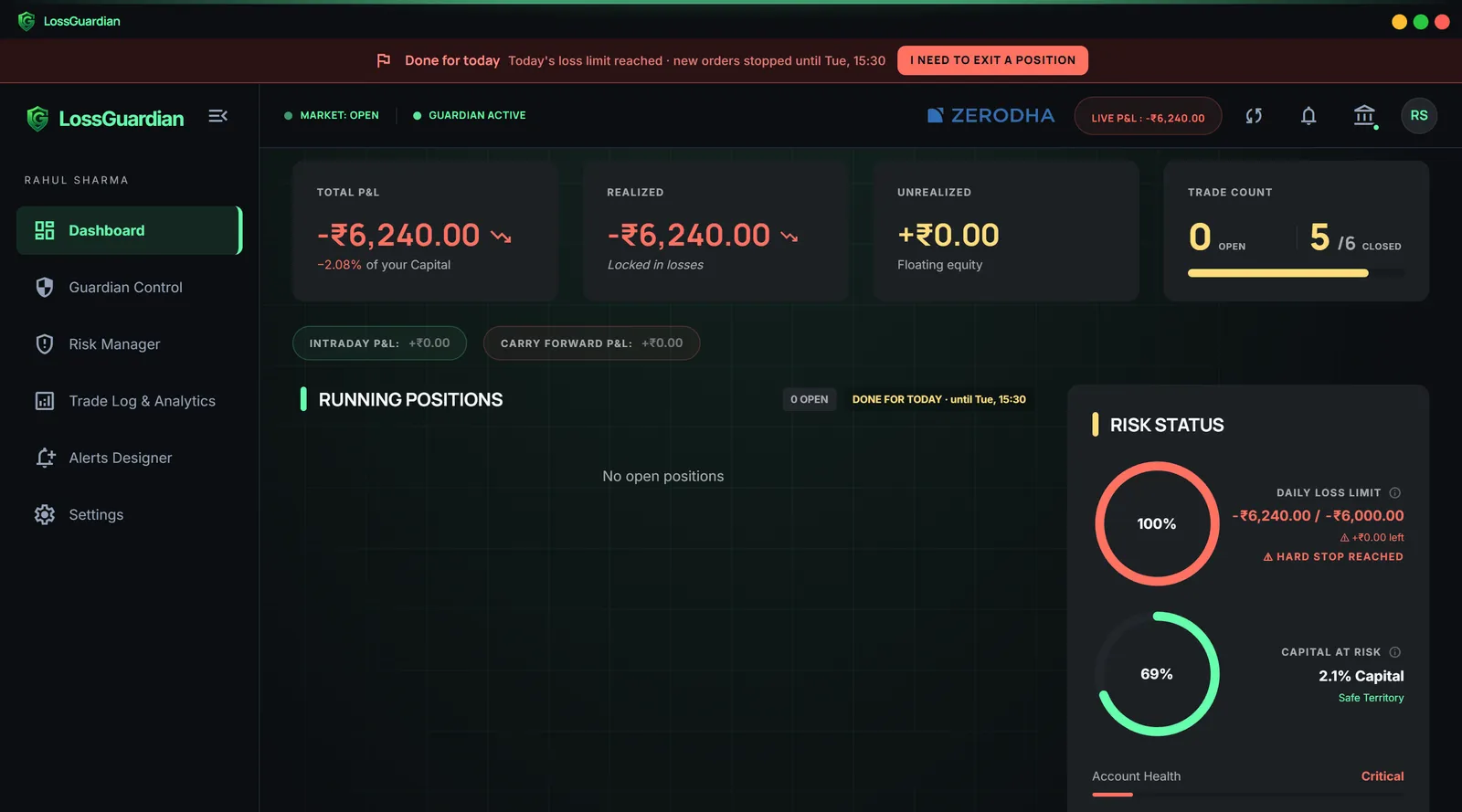
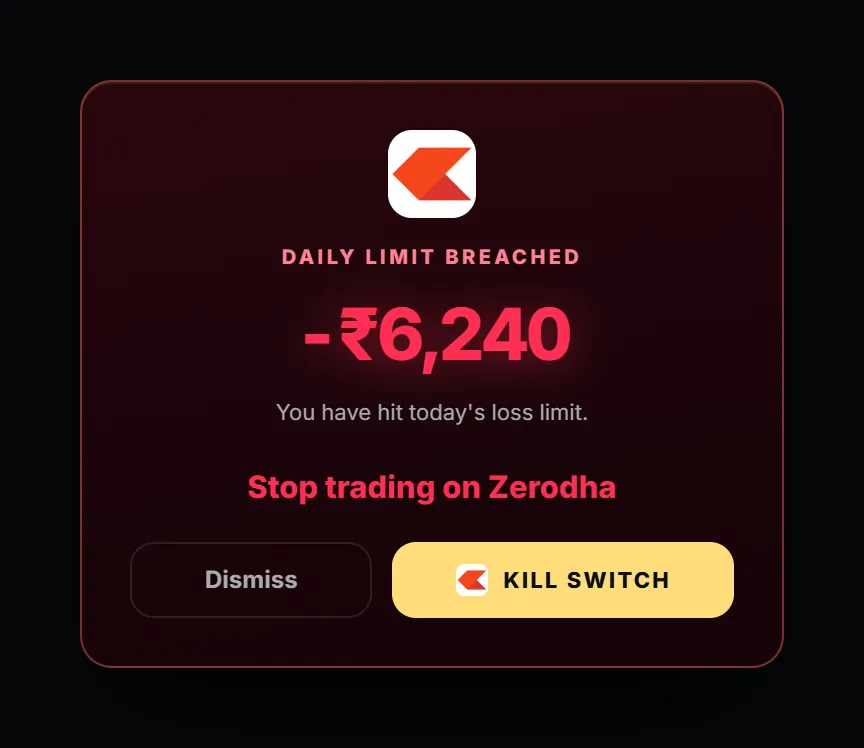
Also presses when your daily loss limit breaks, when you trade during a pause, or when you open a new trade while exiting a position.
Any Done
Presses whenever your day ends for any rule: trade limit, losing trades, losses in a row, impulse trades, late entries, profit give-back, or your own Done for today.
Automatic or Manual
| Automatic | Manual | |
|---|---|---|
| Who presses the Kill Switch | LossGuardian, for you | You, in one click |
| When | When you are done for the day and out of your trades | Whenever you choose |
| Needs your consent | Yes, once per broker | No |
| Covers your phone | Yes, your broker refuses orders from every device | Yes, once you switch it on |
| Best for | Traders who know they will not press it in the moment | Traders who want the last word |
Kill Switch at each broker
| Broker | What it stops | How long | Automatic |
|---|---|---|---|
| Zerodha | The segments you choose | Until the next session | Yes |
| Upstox | The segments you choose | Until the next session | Yes. Usually nothing to type. |
| Fyers | Your segments | Until the next session | Yes |
| Dhan | Your whole account | Until the next session | Yes |
| Groww | F&O and commodities | Until the next session | Yes |
| Angel One | Has no Kill Switch | Not applicable | Advanced Mode is your stop instead |
As each broker shows it on its own Kill Switch page, November 2026. Brokers change their rules, so check your broker’s help page too. Nobody can switch it off early, not even you.
It never touches your trades
LossGuardian never places, changes or cancels an order, and it never closes a position. It waits until you are out of your trades before it presses. It is optional and off until you choose Automatic and agree, broker by broker. Outside market hours you can switch back to Manual at any time. During market hours your choice holds, so a bad moment cannot undo a good plan.
Automatic Kill Switch: questions traders ask
What is an automatic kill switch in trading?
It turns on your broker’s Kill Switch for you when you break a rule you set, so your broker refuses new orders until the next session. With LossGuardian it is optional and needs your consent.
Which brokers does the Automatic Kill Switch work with?
Zerodha, Fyers, Dhan, Upstox and Groww. Angel One has no Kill Switch of its own, so LossGuardian Advanced Mode is the stop for Angel One traders instead.
Will it close my open positions?
No. LossGuardian never closes a position and never places, changes or cancels an order. It waits until you are out of your trades, then presses the Kill Switch.
Can I turn the Kill Switch off after it is pressed?
No. Once it is on, your broker’s own rules decide when it comes off, which is the next session. That is what makes it work.
Can I switch from Automatic back to Manual?
Yes, outside market hours, at any time. During market hours your setting holds.
Does it stop trading from my phone?
Yes. When your broker’s Kill Switch is on, your broker refuses new orders from every device, including its phone app.
Does every stop press the Kill Switch?
Only the ones you choose. Capital Saver only, Loss limit, or Any Done. A short pause never presses it.
Advanced Mode
Advanced Mode turns your trading rules into real stops. Pause 15 to 60 minutes or end your day when a rule breaks. Exits stay open. Optional, and as strict as you choose.
See Advanced ModeRead more
- Most advanced automatic kill switch software for overtrading and emotional trading (2026)
- Kill switch in trading: Upstox, Zerodha, Angel One, Dhan, Fyers, Groww
- How to stop trading after a loss automatically (kill switch after your limit)
- No. 1 automated risk management software for traders (2026)
See all features · Works with Zerodha, Fyers, Dhan, Upstox, Angel One and Groww