
How-to guides
Most advanced automatic kill switch software for overtrading and emotional trading (2026)
What the most advanced automatic kill switch software for traders should do in 2026: stop overtrading and emotional trading, press your broker's Kill Switch for you, and never touch your trades.
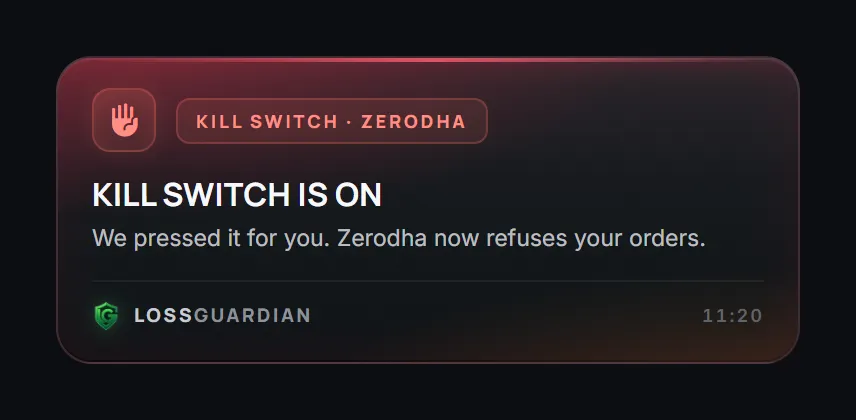
Quick answer: the most advanced automatic kill switch software does five things. It stops you on rules you set, presses your broker's own Kill Switch for you with your consent, never touches your trades, lets you choose how strict it is, and shows you your own data so you need it less over time.
Every trader knows the feeling. You are down more than you planned. You know you should stop. And then you take one more trade.
That one trade is rarely about the market. It is about emotion. Anger after a loss, the need to win it back, the fear of ending the day red. A kill switch exists for exactly this moment. The problem is that you have to press it yourself, right when you want to the least.
Automatic kill switch software fixes that. Here is what the best one should do, and how to check any tool before you trust it with your trading day.
Why a manual kill switch is not enough
Most Indian brokers have a Kill Switch. Once it is on, your broker refuses new orders until the next session. It works. Almost nobody uses it.
Not because traders are lazy. Because of timing. The moment you should press it is the moment your emotions are loudest. "One more trade and I am out." We have all said it.
So the kill switch needs to come on without asking you again in that moment. You decide once, in the morning, when you are calm. Then the software keeps your promise for you.
More on how broker kill switches work in what a kill switch in trading actually does.
1. It uses your broker's own Kill Switch
The strongest stop is the one your broker enforces. When your broker's Kill Switch is on, new orders are refused from every device: your computer, your phone, any app.
So the best automatic kill switch software does not build its own stop and hope it holds. It presses your broker's own Kill Switch for you.
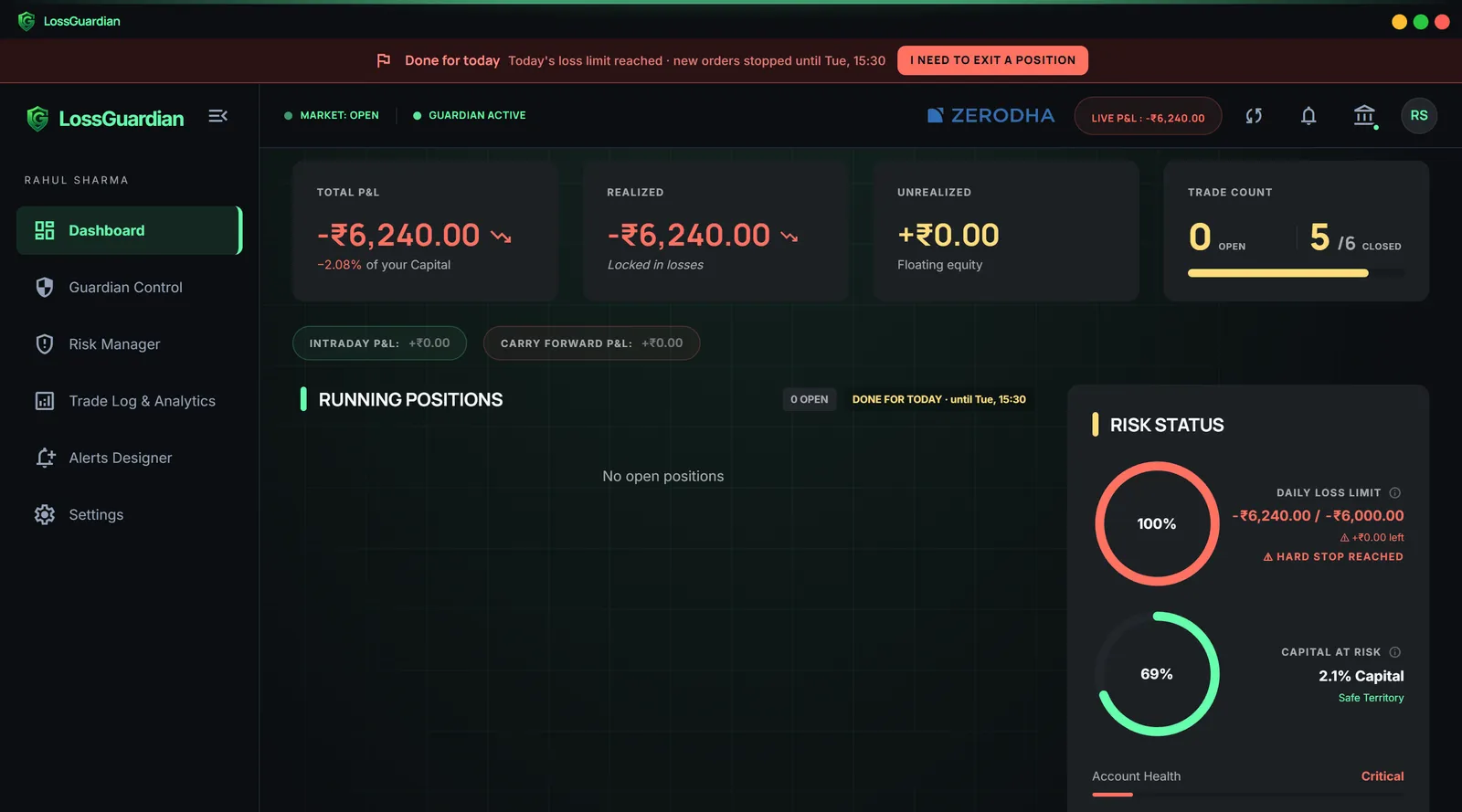
LossGuardian works this way for Zerodha, Fyers, Dhan, Upstox and Groww. With your consent, it presses your broker's own Kill Switch when you are done for the day. See how the Automatic Kill Switch works.
2. It never touches your trades
This is the most important check. Some tools close your positions or cancel your orders when a limit breaks. That means they need permission to trade on your account.
Ask yourself: do you want any software holding that power?
LossGuardian never places, changes or cancels an order, and it never closes a position. It waits until you are out of your trades, then presses the Kill Switch. You stay in charge of every exit. That is safer for your account, and it is how the habit of stopping gets built.
3. You choose what triggers it
A good kill switch is flexible. A trader who only wants protection from a disaster day should not lose a session over a trade count.
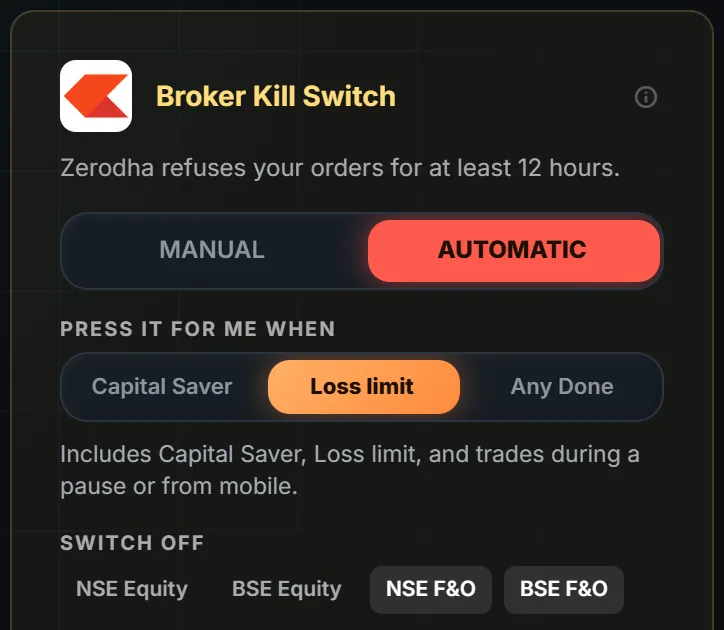
LossGuardian gives you three levels for the Automatic Kill Switch:
- Capital Saver only. It presses only when your hardest limit, the one that protects your account, is broken.
- Loss limit. It also presses when your daily loss limit breaks.
- Any Done. It presses whenever your day ends for any rule: trade limit, losing streak, revenge trades, late entries and more.
Prefer to press it yourself? Choose Manual. When you hit a stop, LossGuardian takes you to your broker's Kill Switch page in one click.
4. It catches emotional trading early, not just big losses
A big loss is usually the end of a chain. It starts with a revenge trade two minutes after a stop-loss, or a fourth trade on a day you planned for two.
The most advanced software watches for that chain:
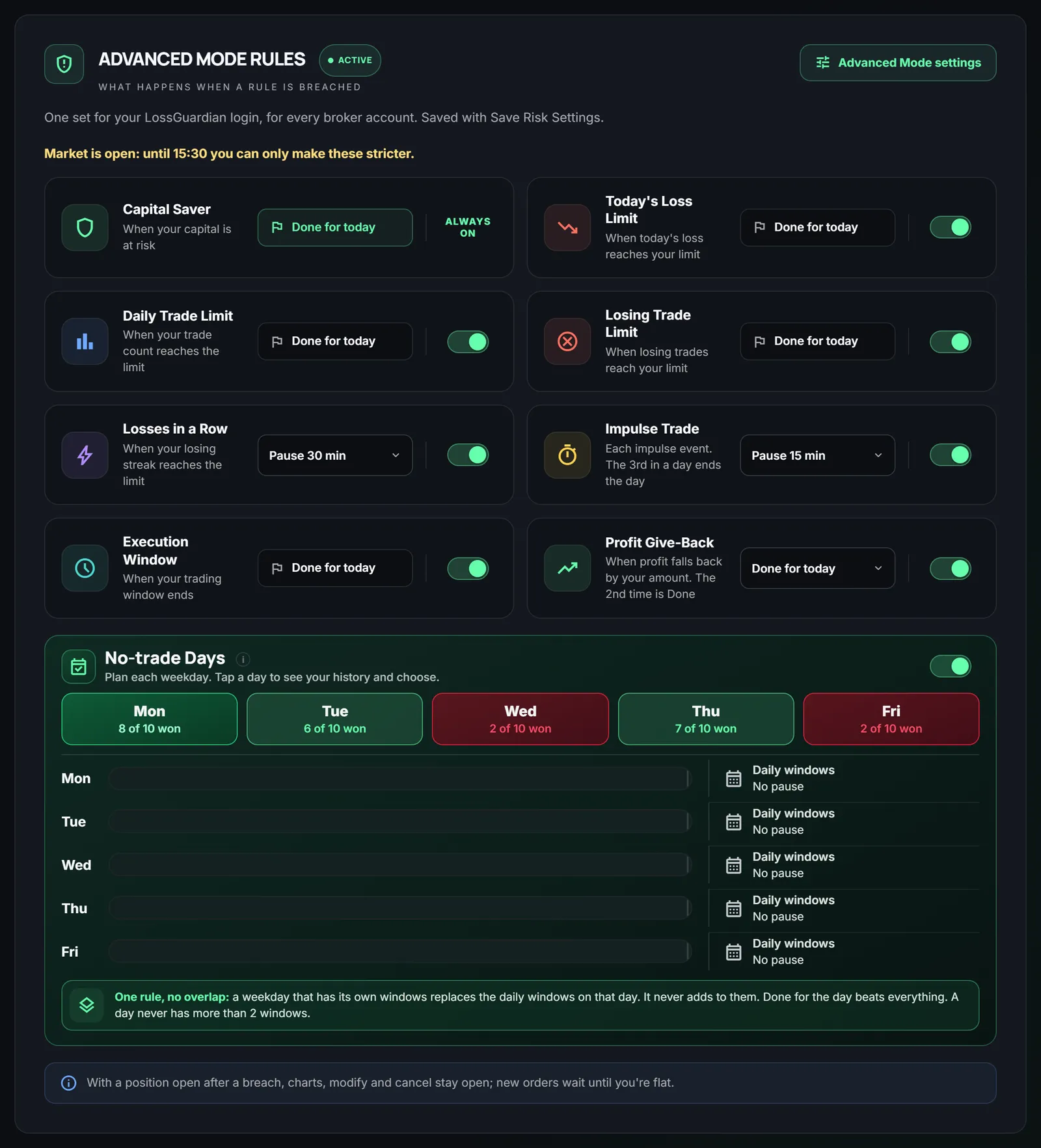
- Revenge and impulse trades: re-entering the same contract right after a loss.
- Losing streaks: three, four, five losses in a row.
- Overtrading: more trades than you planned for the day.
- Late entries: new trades after your cutoff time.
- Giving back profit: a good morning turning into a red afternoon.
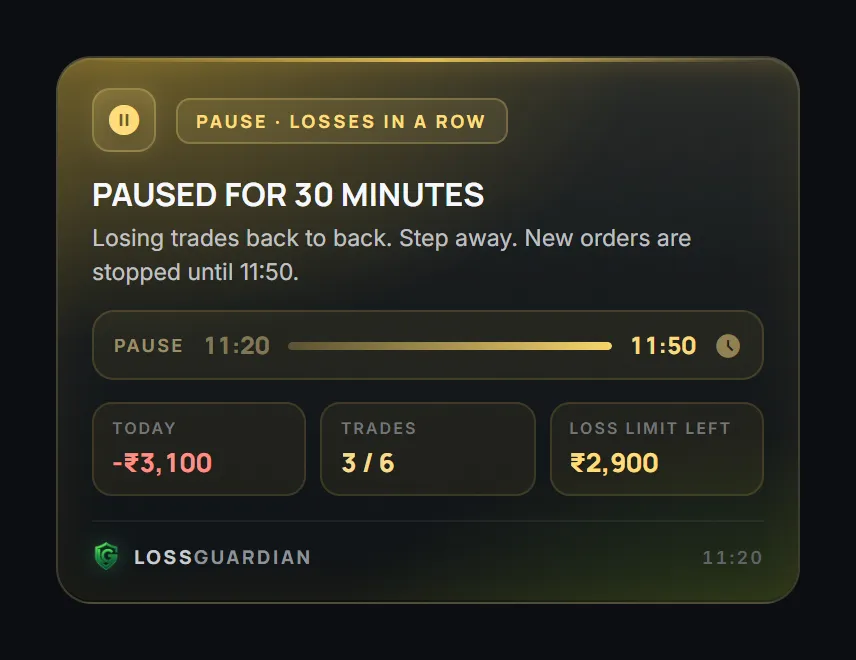
With LossGuardian Advanced Mode, each of these can give you a short pause (15 to 60 minutes) or end your day. You decide which.
5. It shows you your own data
This is where most tools stop and where the real change starts.
A kill switch ends a bad day. It does not tell you why the day went bad. Your data does.
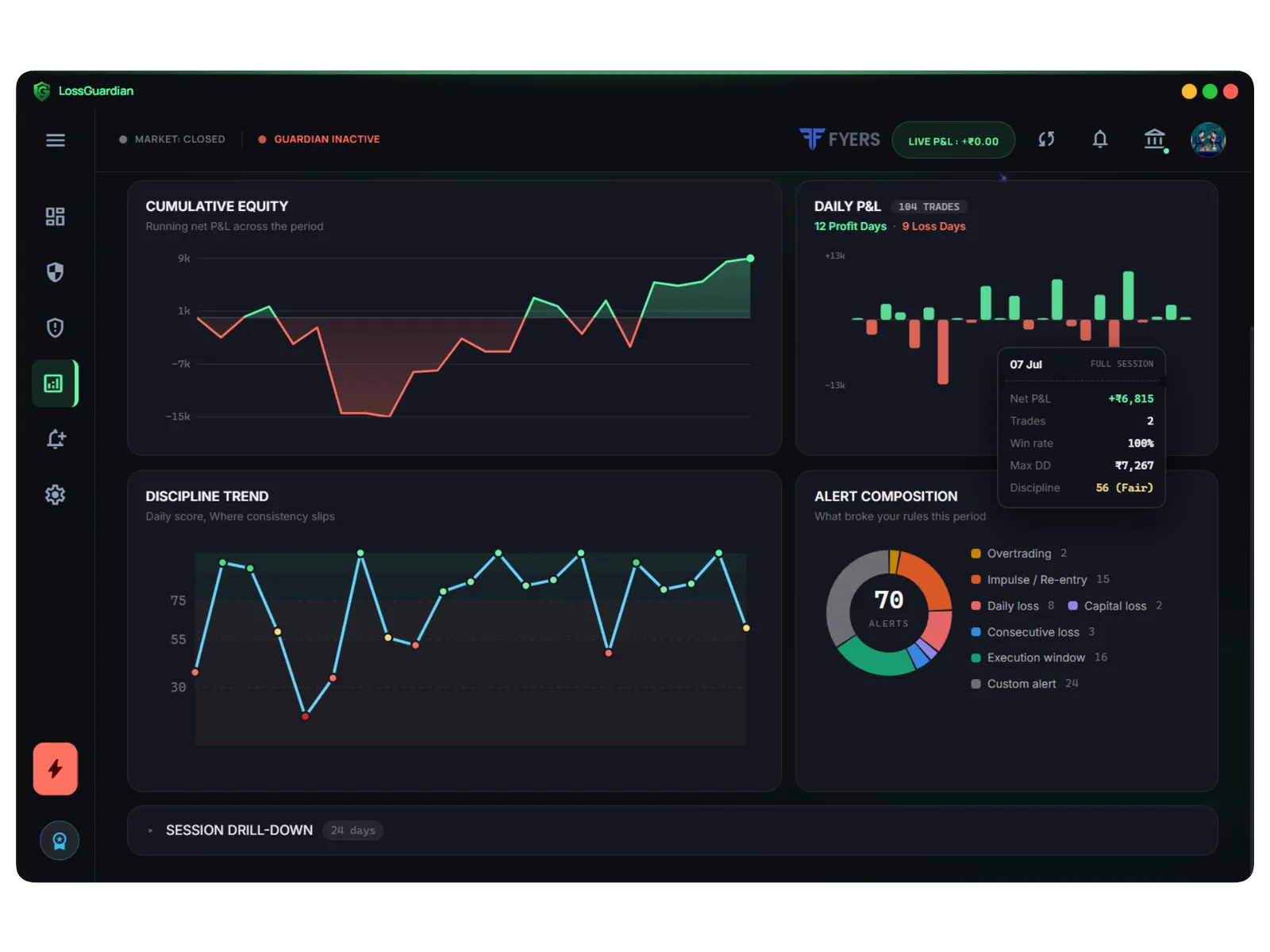
LossGuardian keeps a full record of your sessions: which rules you broke, at what time, after which trade, and what it cost you. Your discipline score shows if you are getting better week by week. Most traders are surprised the first time they see their own pattern. It is usually the same mistake, at the same time of day.
That is the goal: to become the trader who rarely needs the kill switch.
6. It is hard to undo in a weak moment
If you can switch a safety off in two clicks, you will, at 1:30 PM. The best software respects your morning self.
In LossGuardian, during market hours your settings can only get stricter. Outside market hours you can change anything, at once, including switching the Kill Switch back to Manual.
7. It works with your broker, on your terms
Check the broker list before anything else. Many tools support one or two brokers.
LossGuardian supports Zerodha, Fyers, Dhan, Upstox, Angel One and Groww, at one price. Angel One has no Kill Switch of its own, so Advanced Mode gives Angel One traders a stop that works like one: when you are done for the day, trading on your computer pauses until the close. See the Angel One page.
Checklist: compare any kill switch software
| Check | What to look for |
|---|---|
| Uses your broker's own Kill Switch | Yes, so it covers every device |
| Places or closes trades | Never |
| Needs your consent | Yes, broker by broker |
| Choose what triggers it | Several levels, plus a Manual mode |
| Catches revenge trading and overtrading | Yes, not only big losses |
| Shows your own trading data | Discipline score, mistakes, patterns |
| Brokers supported | All the ones you use |
The feeling you are really buying
Nobody buys a kill switch because they love rules. They buy it because they are tired of one bad hour undoing a good month.
With the right software, someone is watching your trades with you. You trade without the fear of the day that wipes you out. And slowly, with your own data in front of you, the discipline becomes yours.
LossGuardian is free to try for 10 days, no card needed. Set your limits, choose Automatic or Manual, and see what your trading looks like with a guard on duty. Download it here.
Read next: automated risk management software for traders, how to stop revenge trading and how to control emotions in trading. Broker pages: Zerodha, Fyers, Dhan, Upstox, Groww, Angel One.
Questions traders ask
What is automatic kill switch software?
It is software that watches your trades and, when you break a rule you set, turns on your broker's own Kill Switch for you, so your broker stops taking new orders for the day. With LossGuardian it is optional and needs your consent.
What is the best automatic kill switch software for overtrading?
Look for software that works with your broker's own Kill Switch, never places or closes trades, lets you choose which rules lead to the Kill Switch, waits until you are out of your trades, and shows you your own data afterwards. LossGuardian does all of this for Zerodha, Fyers, Dhan, Upstox and Groww, and gives Angel One traders a stop that works like one.
Can software turn on my broker's kill switch automatically?
Yes. With your consent, LossGuardian presses your broker's own Kill Switch for you when you are done for the day. You choose which stops lead to it, and you can switch back to Manual outside market hours.
Will an automatic kill switch close my open positions?
Not with LossGuardian. It never places, changes or cancels an order, and it never closes a position. It waits until you have exited your trades, then presses the Kill Switch.
Does an automatic kill switch help with emotional trading?
Yes. Emotional trades happen in the minutes after a loss, when you are least able to stop yourself. An automatic kill switch makes the decision in the morning, when you are calm, so there is nothing left to argue with later.
Is there a kill switch for Angel One?
Angel One has no Kill Switch of its own. LossGuardian Advanced Mode gives Angel One traders a stop that works like one. When you are done for the day, trading on your computer pauses until the market closes.
Which software can turn on my broker's Kill Switch automatically?
LossGuardian can, with your consent, for Zerodha, Fyers, Dhan, Upstox and Groww. You choose which stops lead to it, and it waits until you are out of your trades. It is read-only and never places an order.
LossGuardian watches your positions across six Indian brokers and warns you the moment you cross your own daily loss limit. It is read-only: it never places, modifies or cancels an order.
Download LossGuardian