
LossGuardian guide
How to set up Advanced Mode
Advanced Mode takes about five minutes to set up, and it works well on its defaults. Here is every option, in the order you see it, and what it does.
1. Turn it on
- 1
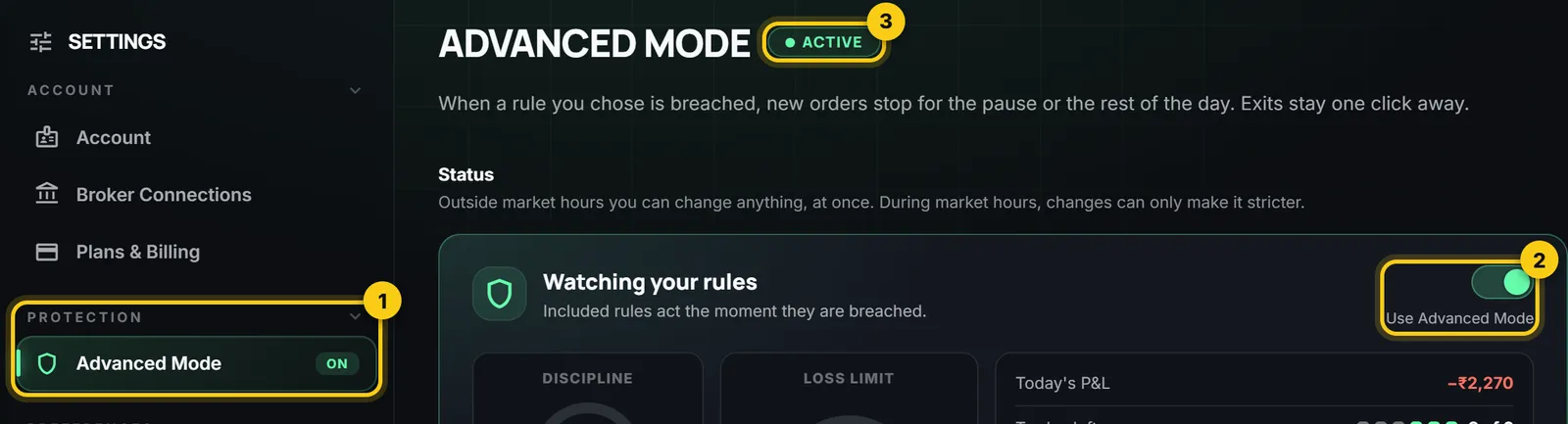
Open Settings. Under Protection, click Advanced Mode. The label next to it shows Off, On, Paused or Done.
- 2
Switch on Use Advanced Mode.
- 3
Read what it does and agree. You do this once.
2. Choose Pause or Done for each rule
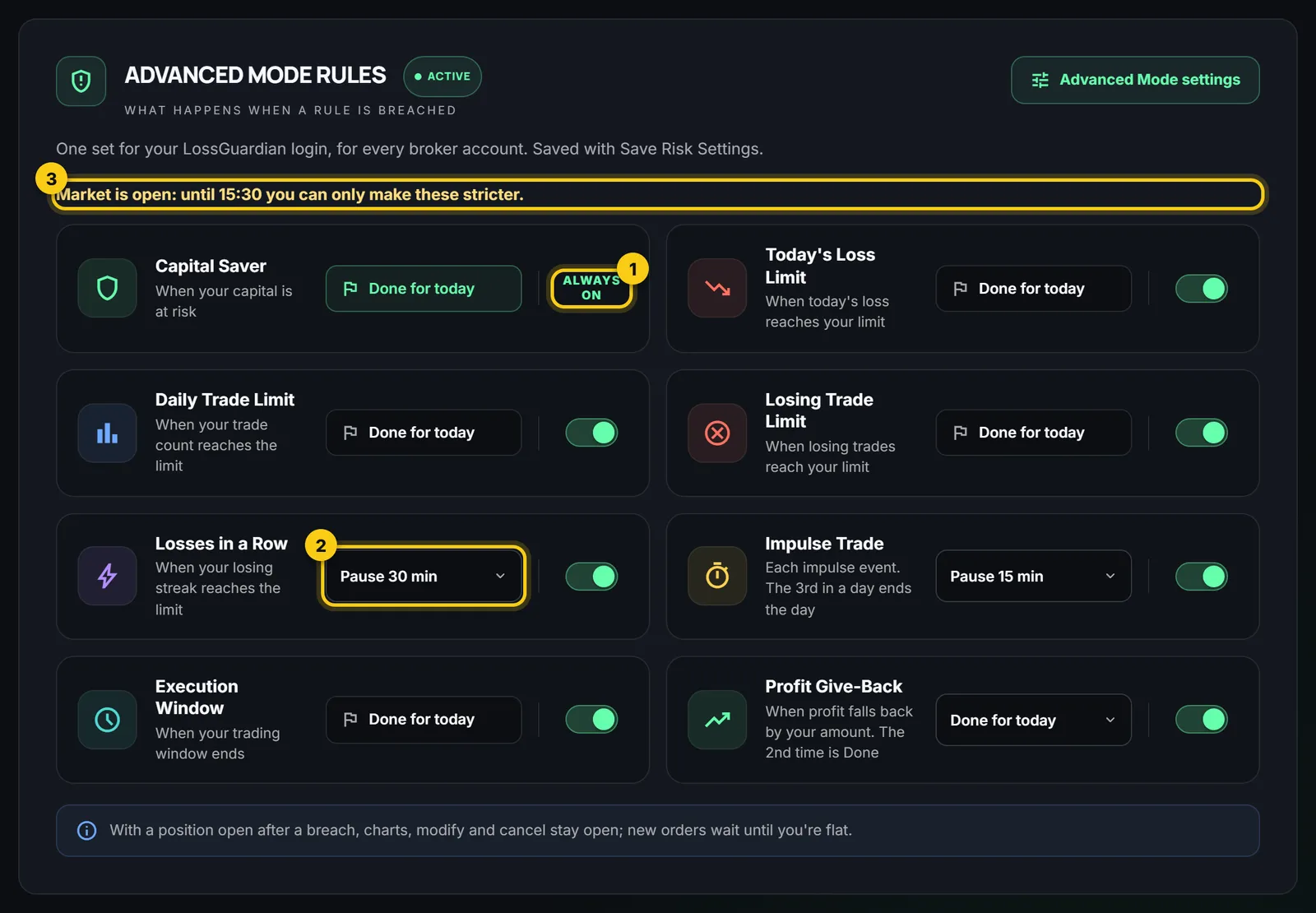
In Risk Manager, under Advanced Mode rules, each rule has an action. A pause lasts 15, 20, 30 or 60 minutes. Done ends your day until your trading hours close. Rules that last all day, like the loss limit and the trade limit, always end the day.
Switch off any rule you do not want. Capital Saver always stays on, because it protects your account itself.
3. In your browser
- 1
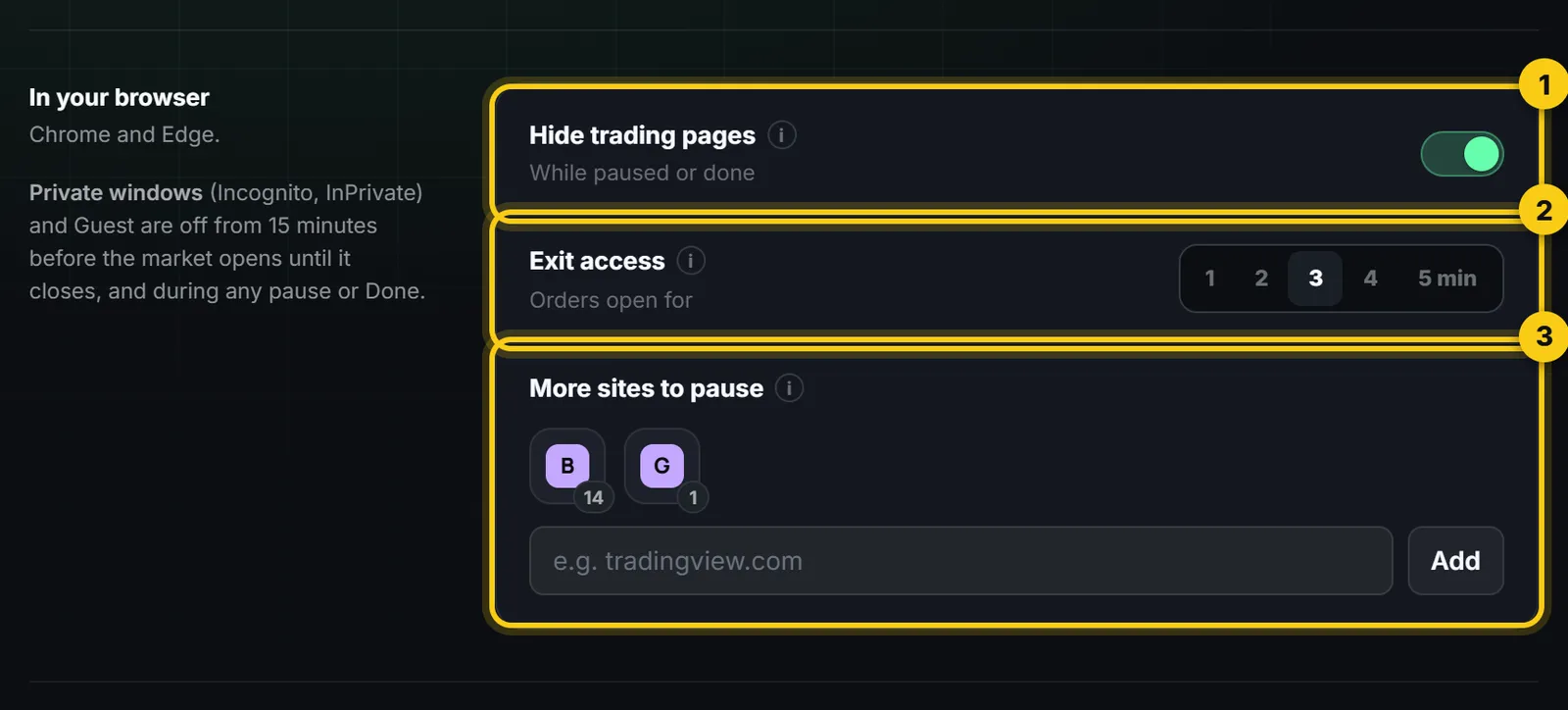
Hide trading pages. On by default. While you are paused or done, your broker’s trading pages are hidden. Switch it off to keep charts visible, with only new orders paused.
- 2
Exit access. How long orders open when you press I need to exit a position: 1 to 5 minutes, 3 by default. Close your position or place its stop-loss or target. A new trade in that time makes you done for the day.
- 3
More sites to pause. The broker pages are built in. Add any other site where you slip, like a charting site.
4. Add a site to pause
- 1
Under More sites to pause, type the site name, like gocharting.com. Just the name pauses the whole site.
- 2
Press Add. You can add up to 30 sites.
- 3
Press Allow your sites once in the LossGuardian toolbar button, so tabs that are already open pause at once.
Built-in broker pages cannot be removed. Removing a site you added waits until the next trading day, so a bad moment cannot undo it.
5. Safety and reflection
Kill Switch on my other brokers: also press it on your other brokers set to Automatic, each with its own consent and setting.
- 1
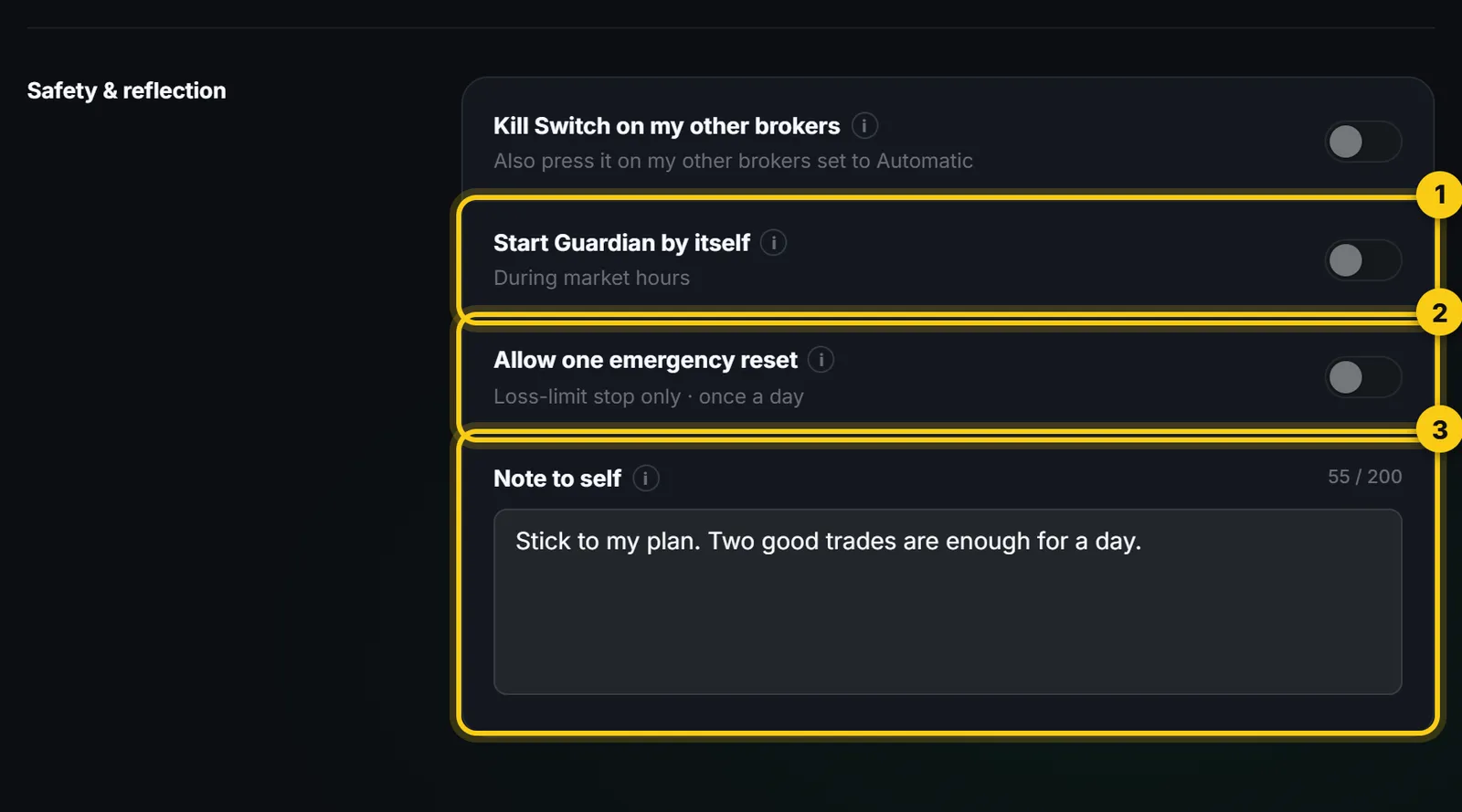
Start Guardian by itself. Guardian starts when the market opens, if your broker is connected. If you stop it, it stays off for the rest of the day.
- 2
Allow one emergency reset. Off by default. When on, a stop caused only by your loss limit can be reset once a day, after you type a reason and wait 60 seconds.
- 3
Note to self. Write it while you are calm, up to 200 characters. It is shown when you are paused or done.
6. Your broker’s Kill Switch
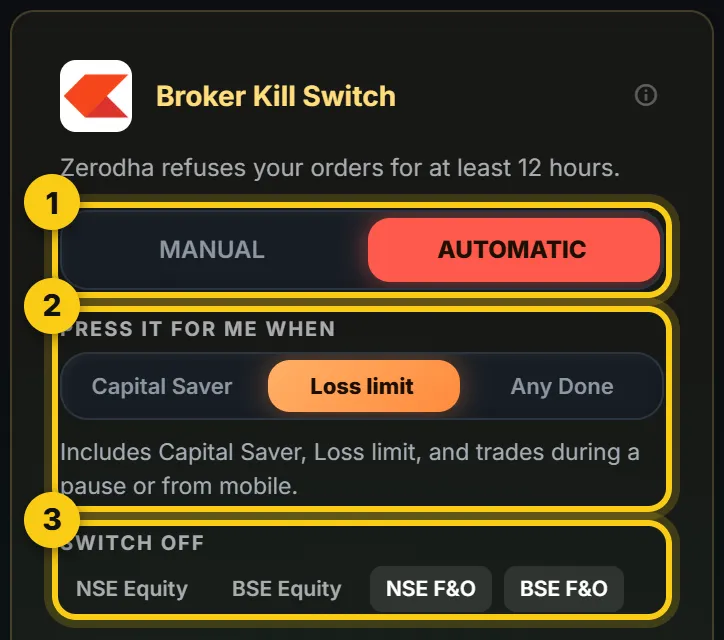
In Risk Manager, the Broker Kill Switch card sets Manual or Automatic for your broker, which stops press it, and for Zerodha and Upstox, which segments to switch off.
Changing your settings later
During market hours you can only make Advanced Mode stricter. After the close you can change anything, at once, including switching it off or setting the Kill Switch back to Manual.
Questions
Do I need to change every setting?
No. The defaults work. Turn Advanced Mode on, check your rules in Risk Manager, and write a note to self.
Why can I not loosen a rule during the day?
So a bad moment cannot undo a plan you made calmly. After the close you can change anything.
Does Advanced Mode need the browser extension?
Yes, for the pages and orders in your browser. See the browser extension guide.