
LossGuardian guide
The LossGuardian browser extension
Advanced Mode works through a small extension for Chrome and Edge on Windows. It pauses your broker’s trading pages when a rule breaks, shows your Paused and Done screen, and, if you choose Automatic, presses your broker’s Kill Switch for you.
What the extension does
Exits always stay open. You can always close a position.
- Pauses your broker’s trading pages and new orders while you are paused or done for the day.
- Pauses the other sites you add, like a charting site.
- Shows your Paused and Done screen in place of a paused site.
- Gives you a toolbar button with your status, your note and your numbers.
- On Automatic, presses your broker’s own Kill Switch once you are done for the day and out of your trades.
What it never does
- It never places, changes or cancels an order, and never closes a position.
- It talks only to the LossGuardian app on your computer. It has no server of its own.
- It does not read your passwords or cookies, and it does not store trade figures or login tokens.
How to install it
- 1
Install LossGuardian on Windows and turn on Advanced Mode in Settings.
- 2
Add the LossGuardian Advanced Mode extension from the Chrome Web Store. Edge installs it from there too.
- 3
Add it to every browser profile you trade in. A profile without it is not covered.
- 4
Keep the LossGuardian app open during market hours. The extension works with the app on the same computer.
Other browsers are not covered yet. Advanced Mode works in Chrome and Edge only.
Private and guest windows
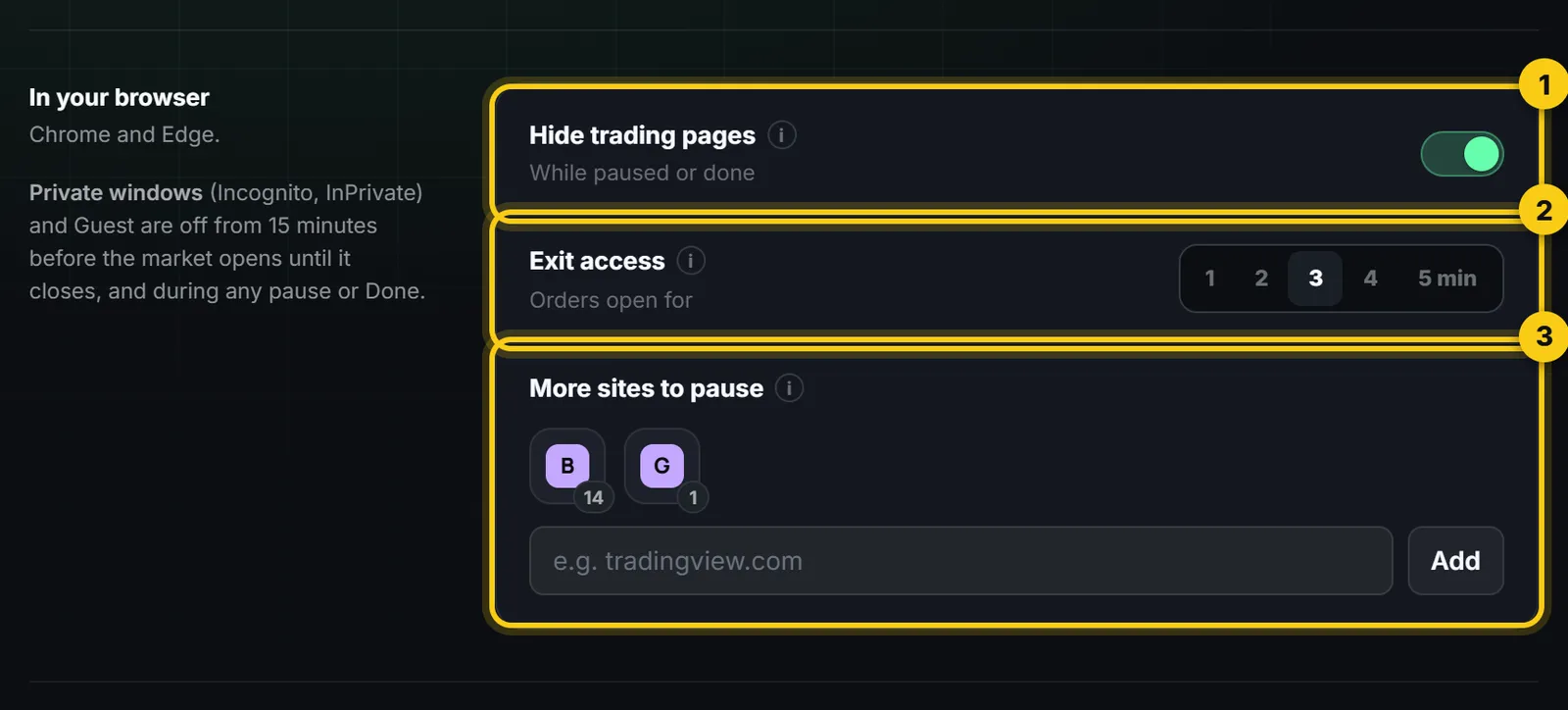
From 15 minutes before the market opens until it closes, and during any pause or Done, Incognito, InPrivate and Guest windows are off in Chrome and Edge, because the extension cannot work in them. Outside those hours they are back. A browser that was already open when they went off needs one restart.
Which sites are paused
The trading pages of all six brokers are built in: Zerodha, Fyers, Dhan, Upstox, Angel One and Groww. You can add your own sites, up to 30, in Advanced Mode settings.
For the Automatic Kill Switch: stay logged in
The Automatic Kill Switch presses your broker’s own Kill Switch on its own page, in Chrome or Edge, in a profile with the extension. So stay logged in to your broker there. If you are logged out, LossGuardian tells you, and presses it as soon as you log in.
Zerodha logs you out when the browser closes, unless the browser reopens your last session. Turn that on once:
- Chrome: Settings, then On startup, then Continue where you left off.
- Edge: Settings, then Start, home, and new tab page, then On startup, then Open tabs from the previous session.
On Upstox, Automatic usually needs nothing from you. If it cannot finish on its own, Upstox may ask for the code it emails you, and you type it.
About the Automatic Kill SwitchQuestions
Does it work in Firefox, Brave or Safari?
Not yet. Advanced Mode works in Chrome and Edge on Windows.
Does it work on my phone?
No. For your phone, use the Automatic Kill Switch: your broker then refuses new orders from every device.
Can the extension see my passwords?
No. It does not read passwords or cookies, and it talks only to the LossGuardian app on your computer.
What happens if I close the LossGuardian app?
Keep it open in market hours. The extension works together with the app on the same computer.