
How-to guides
Groww Kill Switch: how the automatic one works and what it covers
Groww has its own Kill Switch for F&O and Commodities. See what it covers, how long it lasts, what it leaves open, and how to have it pressed for you after a loss.
Quick answer: Groww has its own Kill Switch for F&O and Commodities. When it is on, Groww refuses those orders until the next session, and nobody can turn it off early. It does not cover stocks or mutual funds. With your consent, LossGuardian can press it for you when you are done for the day. It never closes a trade.
It is late morning. You are down on the day. Your plan said stop at this loss, and you passed it twenty minutes ago.
You have an open F&O position, a bad feeling, and a Groww app one tap away. A stop-loss on a trade is easy to set. A stop on the day is harder, because it depends on you saying no at the worst moment. Groww does have a Kill Switch for F&O and Commodities, tucked into your trading controls. It only helps if you switch it on.
This page explains what that switch does, what it leaves out, and how the automatic version helps on the days you know you will not press it yourself.
What the Groww Kill Switch does
Groww calls it a control in your Trading controls. Once you switch it on, Groww itself refuses new F&O and Commodity orders. It holds until the next session.
Three things matter here.
Groww enforces it, not an app. It is Groww's own switch. LossGuardian does not make it and does not own it. When it is on, the refusal comes from Groww, on every device you use.
Nobody can lift it early. Not you, not support, not LossGuardian. That sounds harsh, but it is the whole point. A stop you can undo in the middle of a bad afternoon is a suggestion, not a stop.
You prepare before you press. Groww expects you to be out of your F&O trades first. Cancel your open orders and square off your F&O positions, then press it. LossGuardian never does that part. Closing a trade is always your own action in Groww.
To read the general idea behind this, see what a kill switch in trading is.
What it does not cover
This part needs to be plain.
Groww's Kill Switch covers F&O and Commodities. It does not cover stocks or mutual funds. Those stay open the whole time.
So if you trade equity, the switch will not stop your equity orders. If you lose money in F&O, press it, and then move the same urge into stocks, nothing will stand in the way. Know which segment you actually overtrade in before you decide how much to lean on it.
Here is the short version.
| Groww Kill Switch | |
|---|---|
| Stops | F&O and Commodities |
| Leaves open | Stocks and mutual funds |
| Lasts | Until the next session |
| Can be lifted early | No |
| Who refuses the orders | Groww |
For all brokers side by side, see the Automatic Kill Switch page.
Manual or Automatic
LossGuardian works with Groww's switch in one of two modes. You pick one, and you can change it outside market hours.
Manual. LossGuardian tells you when you are done for the day. A button takes you to Groww's Kill Switch page in one click. You switch it on yourself. The last word stays with you.
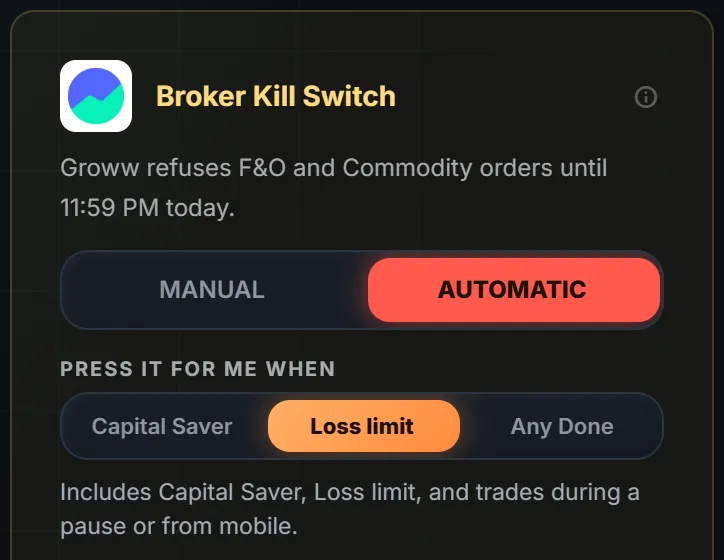
Automatic. With your consent, LossGuardian presses Groww's own Kill Switch for you when you are done for the day. It waits until you are out of your trades first. It is optional and stays off until you choose Automatic and agree to it.
Here is the Groww card in the Risk Manager.
The card has the Manual or Automatic choice, then when you want it pressed: Capital Saver, Loss limit or Any Done. The line at the top of the card tells you what Groww will refuse and until when, so you are never guessing. Unlike some brokers, Groww has no segment choice here. The switch covers F&O and Commodities as one.
Which stops lead to it is up to you. A short pause never presses it. If you are not sure, starting with Capital Saver only is a gentle way in.
When it has been pressed, you see this.
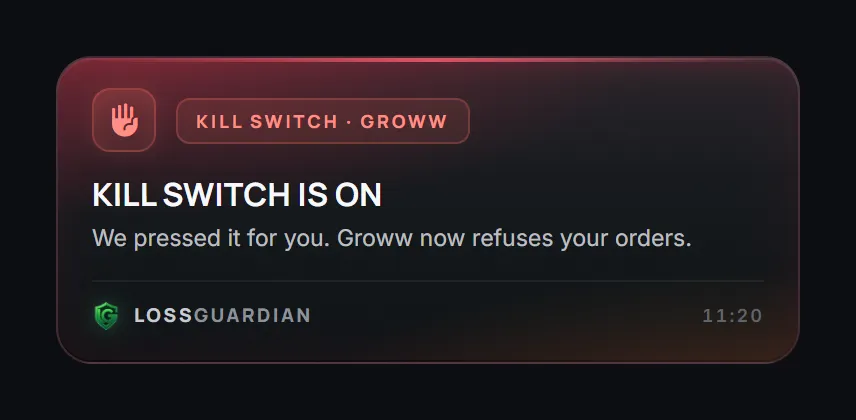
For help choosing between the two, read automatic vs manual kill switch.
Why have it pressed for you
The honest reason is timing. You set your loss limit in the morning, when you are calm. You break it in the afternoon, when you are not.
At that moment, getting to Trading controls, finding the right row and switching it on feels like a lot of work, and "one more trade" takes one tap. Most of us know which way that goes.
With Automatic, the decision you made while calm is the one that holds. You do not have to win an argument with yourself at the worst time. Groww's own switch does the refusing, and it does it on every device, including your phone.
If you already stop when you say you will, Manual is a clean way to finish the day. Automatic is for the days you know you will not.
What you gain
You gain a stop on the day that does not depend on willpower. For F&O and Commodities, the rest of the session stays quiet after you are done, so one bad hour does not turn into a bad week.
You also gain a clear picture. The card tells you what is covered and what is not. If you trade stocks, you will know the switch does not reach them, and you can plan for that. A stop you understand is one you can trust.
And your trades stay yours. LossGuardian is read-only. It never places, changes or cancels an order, and it never closes a position. The Kill Switch stays Groww's own.
LossGuardian cannot promise you results. It can help you stop on time, on the days you most want to carry on.
How to set it up
- Connect Groww by following the connect your broker guide. The Groww page shows what LossGuardian does with your account.
- Open the Broker Kill Switch card in the Risk Manager guide steps and choose Manual or Automatic.
- If you choose Automatic, pick which stops lead to it and give your consent.
Take your time with step three. Once Groww's switch is on, it stays on until the next session.
If you want the wider picture of stopping after a loss, see how to stop trading after a loss automatically. Try LossGuardian free for 10 days, no card needed. Download it here.
Questions traders ask
Does Groww have a Kill Switch?
Yes, for F&O and Commodities. Once it is on, Groww refuses F&O and Commodity orders until the next session. It does not cover stocks or mutual funds, which stay open.
Does the Groww Kill Switch stop equity trades?
No. Groww's control covers F&O and Commodities only. Stocks and mutual funds stay available, so if you trade equity, this switch will not stop those orders.
How long does the Groww Kill Switch last?
Until the next session. Nobody can lift it early, not you and not LossGuardian.
Can LossGuardian press the Groww Kill Switch for me?
Yes, with your consent. On Automatic, when you are done for the day, LossGuardian presses Groww's own Kill Switch for you. It is off until you choose Automatic and agree, and you can pick which stops lead to it.
Will it close my open Groww positions?
No. LossGuardian is read-only. It never places, changes or cancels an order and never closes a position. It waits until you are out of your trades before it presses.
Can I use Manual instead of Automatic on Groww?
Yes. On Manual, LossGuardian takes you to Groww's Kill Switch page in one click and you switch it on yourself.
Can LossGuardian turn on the Groww Kill Switch for me?
Yes, if you choose Automatic and agree. Once you are out of your trades, it switches on Groww's own F&O control, and Groww refuses new F&O and commodity orders until the next session.
LossGuardian watches your positions across six Indian brokers and warns you the moment you cross your own daily loss limit. It is read-only: it never places, modifies or cancels an order.
Download LossGuardian